Equalizer APO AutoEQ: Correct Your Headphones in 5 Minutes
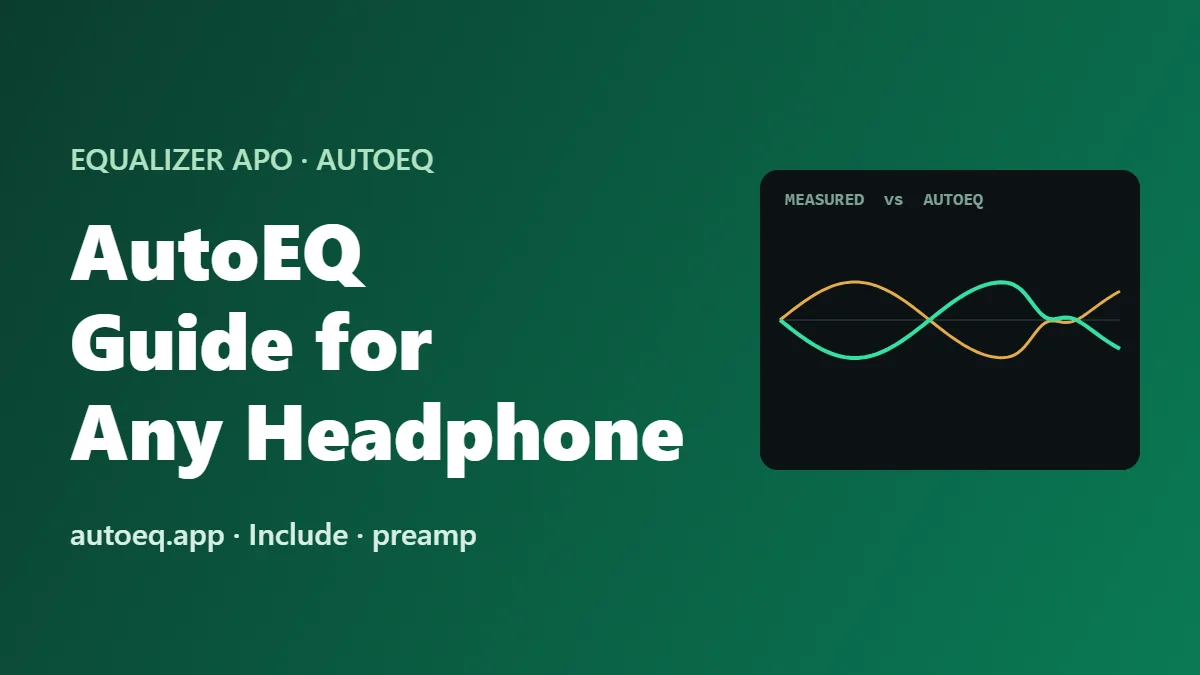
AutoEQ gives you an EQ made for your exact headphone model. It takes a measurement of that model, compares it with a target sound curve, and writes the filters that close the gap. You load the result into Equalizer APO with one line, and your headphones sound closer to neutral within 5 minutes.
Our 20 tested presets are built for a type of sound or a type of headphone. AutoEQ goes one level deeper: one correction per model. The two work together, and this guide shows how.
Before you start: Equalizer APO must already work on your headphones. Tick them in Device Selector and restart Windows. If you haven’t installed it yet, get v1.4.2 from our download section and follow the beginner guide.
What AutoEQ actually does
Every headphone model has its own frequency response: some bass boost, a peak in the treble, a dip in the mids. Measurement reviewers publish these curves. AutoEQ, an open-source project by Jaakko Pasanen, reads them and calculates EQ filters that move your headphone toward a target curve, usually a Harman target for over-ear or in-ear headphones.
The result is a plain text file in Equalizer APO’s own format. No extra software is needed.
Step 1: Generate your file on autoeq.app
- Open autoeq.app in your browser.
- Type your headphone model in the search box and pick it from the list. Many models have more than one measurement source; the first result is a good default.
- Leave the target on the suggested Harman curve for now.
- Under Select Equalizer App, choose EqualizerAPO ParametricEq (or EqualizerAPO GraphicEq, see the table below).
- Download the .txt file.
| Option | What you get | Pick it if |
|---|---|---|
| EqualizerAPO ParametricEq | A short list of filters with Fc, Gain and Q | You want to read, tweak or combine it with our presets |
| EqualizerAPO GraphicEq | One long GraphicEQ line with many points | You want the closest match to the curve and won’t edit it |
Step 2: Put the file in the config folder
Rename the file to something short, like autoeq.txt, and copy it into:
C:\Program Files\EqualizerAPO\configWindows asks for admin permission because it’s inside Program Files. Click Continue.
Step 3: Load it in Equalizer APO
You have two ways. Both do the same thing.
In the Configuration Editor: click the green plus icon, choose Control > Include, click the file icon in the new row and select autoeq.txt. Changes apply as soon as you save.
In config.txt: open it in Notepad (as administrator) and add this line:
Include: autoeq.txtUsing Peace? Import the file through Peace instead, so Peace doesn’t overwrite your Include line the next time it saves. Our Peace guide covers the import.
Step 4: Check the preamp
AutoEQ boosts some frequencies, and any boost can clip. Open the AutoEQ file and look at the first line. ParametricEq files start with a line like Preamp: -6.2 dB. Keep it: it’s sized to the biggest boost in that file.
If your file has no Preamp line, add one in config.txt above the Include line. Make it at least as negative as the largest positive gain in the file. Then open the Configuration Editor and check that Peak gain in the Analysis panel reads 0 dB or lower.
Everything sounds quieter after this. That’s normal. Raise the Windows volume to match, and compare by ear with the EQ off and on.
Step 5: Add your own taste on top
AutoEQ aims for a neutral reference. If you like more bass or less treble, add one or two small filters after the Include line rather than editing the AutoEQ file:
Preamp: -8 dB
Include: autoeq.txt
Filter: ON LSC Fc 105 Hz Gain 2 dB Q 0.70
Every dB you add needs another dB of negative preamp. If you add a lot, you’re better off with one of our genre presets instead of stacking.
Use it on one headphone only
An AutoEQ correction is made for one model. If Equalizer APO also runs on your speakers or mic, put the Include line under a Device: line so it only touches your headphones. The device list at the top of the Configuration Editor writes that line for you. Our config.txt guide explains the Device command.
When AutoEQ sounds wrong
- Crackling on loud parts: the preamp cut is too small or missing. Go back to Step 4.
- Too bright or too thin: your unit, pads or fit differ from the measured one. Try a different measurement source for the same model on autoeq.app, or soften it with a small treble cut.
- Doubled bass or harsh treble: another EQ is still active, such as an old preset in config.txt, Peace, or the headphone maker’s app. Keep one correction only.
- No change at all: the Include line is in the wrong file or the headphone isn’t ticked in Device Selector. See Equalizer APO not working.
- Your model isn’t listed: don’t use a “similar” model’s file. Start from our preset for your headphone type in the settings guide instead.
Equalizer APO AutoEQ: FAQ
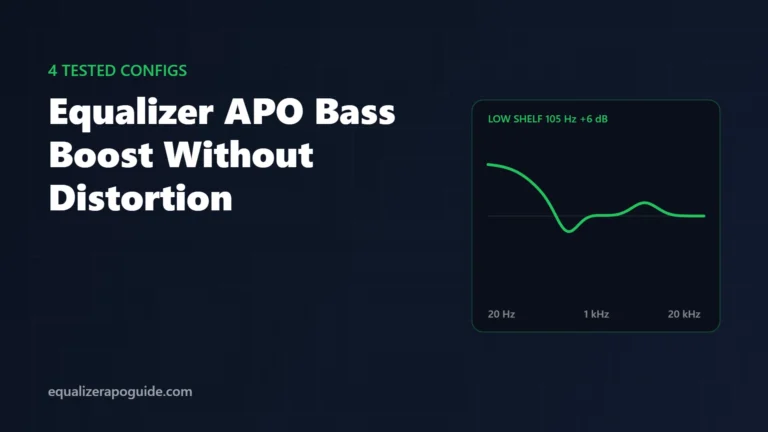
Next: fine-tune by ear with our 20 tested presets, or add a clean bass boost on top of your correction.