How to Uninstall Equalizer APO (and Get Normal Sound Back)
Uninstalling Equalizer APO takes about 3 minutes: back up your presets, remove it from Installed apps, restart Windows, and delete the leftover folder if one remains. Your audio goes back to normal Windows sound after the restart.
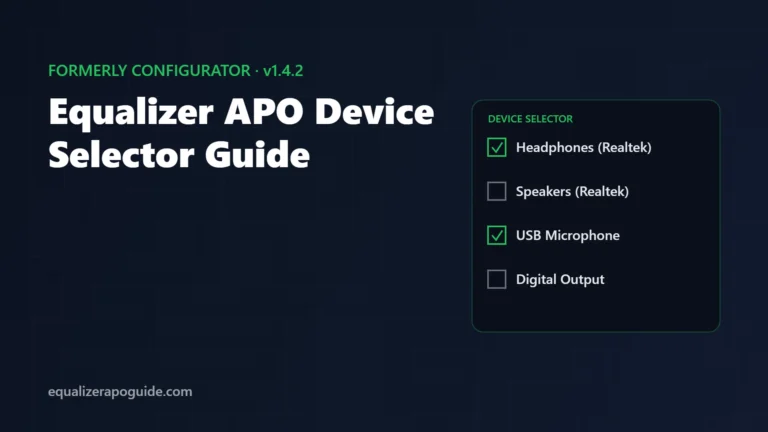
Only want it off one device? You don’t need to uninstall. Open Device Selector, untick that device, click OK and restart. The rest keep their EQ. Our Device Selector guide shows the window.
Step 1: Back up your presets
Your EQ settings live in one folder:
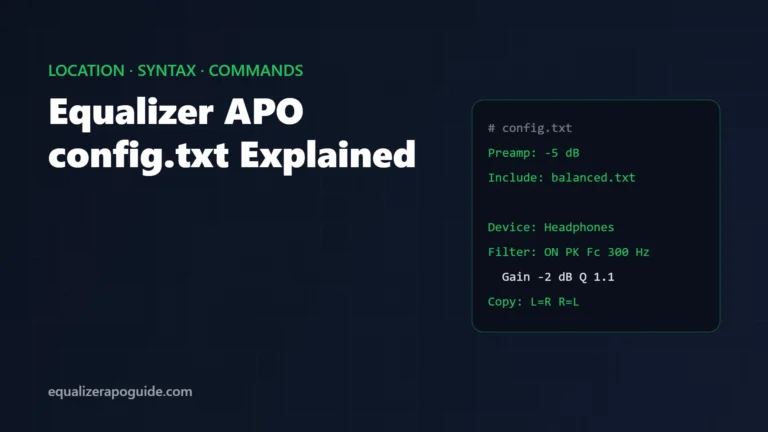
C:\Program Files\EqualizerAPO\configCopy the whole config folder to Documents or a USB stick. It holds config.txt, any files it includes, and Peace’s presets and settings (the .peace files and peace.ini).
Peace users have a second copy too. Newer Peace versions save an automatic backup to a Peace backup folder inside Documents when you close Peace.
Step 2: Uninstall Equalizer APO
- Close the Configuration Editor and Peace if they’re open.
- Open Settings > Apps > Installed apps.
- Find Equalizer APO, click the three dots and choose Uninstall.
- Confirm, and follow the uninstaller to the end.
On Windows 10, or if you prefer the old view, Control Panel > Programs and Features does the same job.
Step 3: Restart Windows
Don’t skip this. Equalizer APO is loaded into the audio driver, and it only lets go at a restart. Until then you may still hear your EQ, or get odd volume and silence.
Step 4: Remove leftovers
After the restart, open C:\Program Files. If an EqualizerAPO folder is still there (usually because it held your own config files), delete it once your backup is safe.
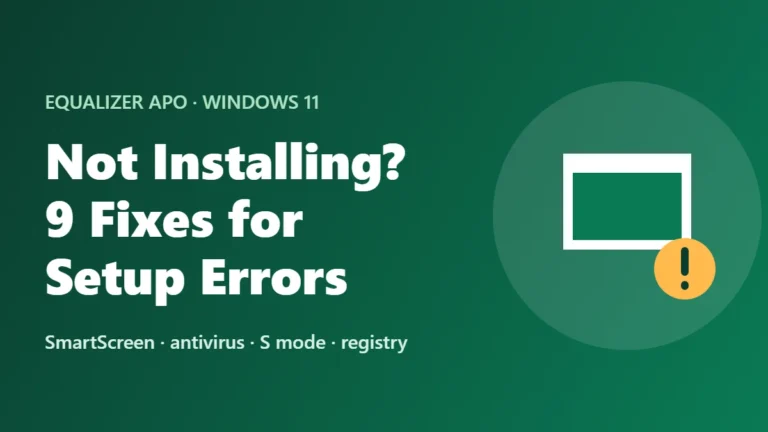
Leave the registry alone. The uninstaller removes Equalizer APO’s entries, and deleting audio keys by hand is how people end up with errors like “Error while opening registry key … Child APO’s” on the next install. Our not installing guide covers that error if you already have it.
What happens to Peace
Peace runs on top of Equalizer APO and keeps its files in the same folder, so uninstalling Equalizer APO removes Peace as well. That’s why the backup in Step 1 matters. You don’t need a separate Peace uninstall.
Sound not normal after uninstalling?
Work down this list and test after each step:
- Restart again. If you uninstalled and kept working, the audio driver may still hold the old setup.
- Check the output device. Settings > System > Sound. Make sure the right speakers or headphones are selected and the volume isn’t muted.
- Check audio enhancements. Click your device and set Audio enhancements to Device Default Effects. Some guides tell you to switch this off for Equalizer APO, and it can stay off afterwards.
- Reinstall the audio driver. In Device Manager, expand Sound, video and game controllers, right-click your audio device, choose Uninstall device, then restart. Windows reinstalls the driver on startup.
If you uninstalled because the sound had already gone silent, the cause may have been fixable without removing anything. Our no sound guide covers those cases.
Reinstalling later
Download v1.4.2 from our download section, install it, tick your device in Device Selector and restart. Then copy your backed-up files into the new config folder and your presets are back.
Uninstall Equalizer APO: FAQ
Thinking of switching instead? See how Equalizer APO compares with FXSound, Voicemeeter and SteelSeries Sonar.