Equalizer APO Device Selector (formerly Configurator): Add, Change & Test Devices
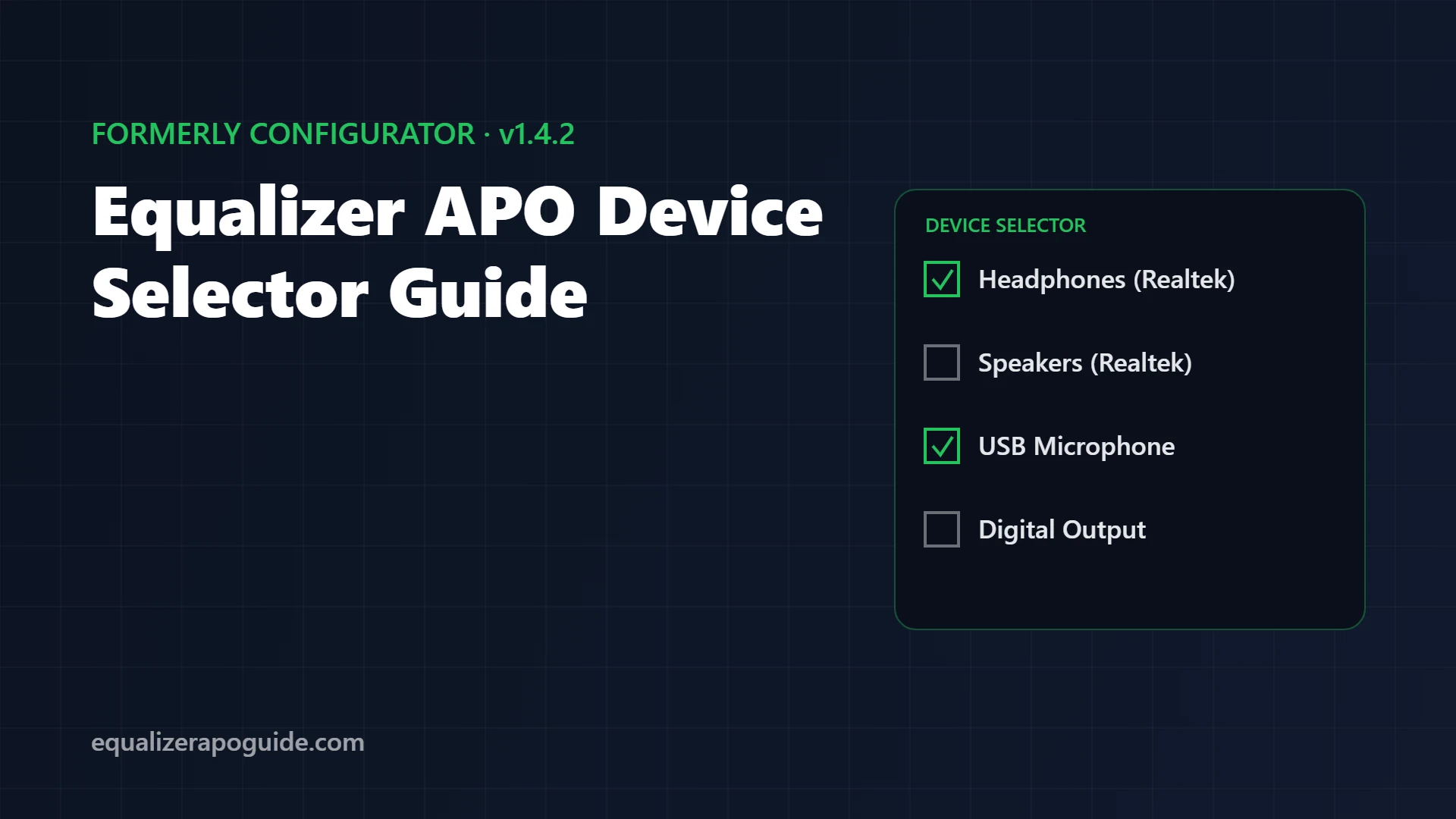
You search the Start menu for “Configurator”. Nothing. You open C:\Program Files\EqualizerAPO and it isn’t there either. Every guide you’ve read, every Reddit answer, every YouTube tutorial tells you to “re-run the Configurator”, and the program they describe no longer exists on your PC.
It got renamed. Since Equalizer APO 1.4, the Configurator is the Device Selector. Same job, new name, new file, plus one feature that fixes the most common “installed but nothing happens” problem on its own.
This guide covers where to find it, how to add speakers, headphones and microphones, what its installation test does, and the 3 problems that still trip people up. Checked against the official 1.4.2 release notes and Windows 11 24H2.
Jump to your problem:
🔍 Can’t find the Configurator? Here’s what replaced it
🎧 EQ does nothing after install? Run the installation test
🖱️ Peace’s Configurator button does nothing? 2-minute fix
🎙️ Need it on your mic? Add a capture device
Configurator vs Device Selector: what changed in 1.4
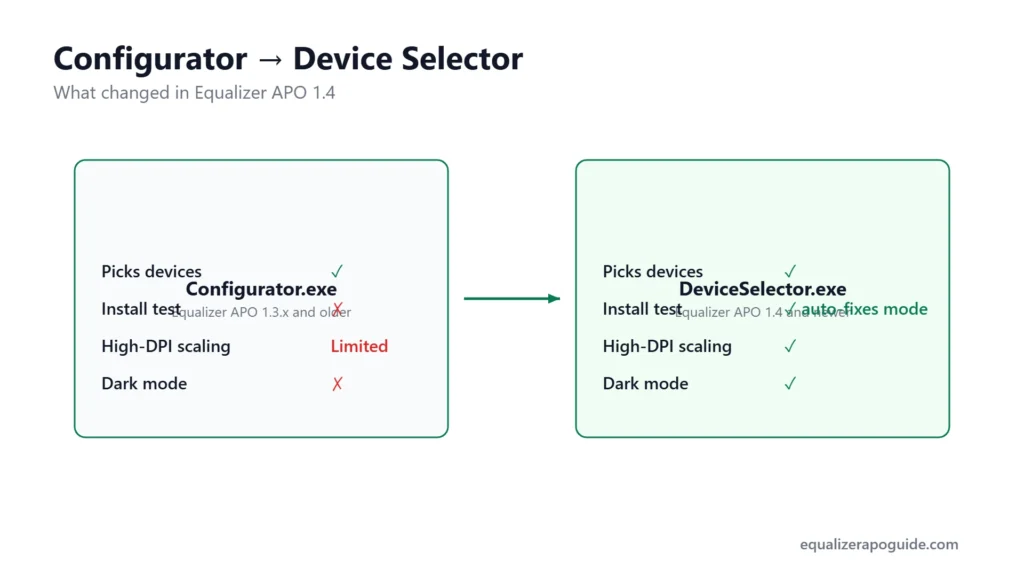
The Equalizer APO 1.4 release notes describe the Device Selector as a Qt-based replacement for the Configurator. Peace developer Peter Verbeek calls it “basically the Configurator with some tests”.
| Configurator (1.3.x and older) | Device Selector (1.4 and newer) | |
|---|---|---|
| File name | Configurator.exe | DeviceSelector.exe |
| Picks devices for Equalizer APO | Yes | Yes |
| Tests that the install actually works | No | Yes, and switches the install mode if needed |
| High-DPI scaling | Limited | Supported |
| Dark mode | No | Follows Windows Settings |
If a guide tells you to open the Configurator, open the Device Selector instead. Every step maps across.
How to open the Device Selector
You have 3 ways in:
- During setup. The installer opens it near the end. This is where most people meet it.
- Start menu. Type Device Selector and open the Equalizer APO entry.
- Directly. Run
DeviceSelector.exefromC:\Program Files\EqualizerAPO.
Open it any time you change headphones, plug in a new USB DAC, or after a big Windows update.
How to add a speaker or headphone
Most failed installs come from ticking the wrong device. Windows often shows 3 entries called “Speakers”, and the Device Selector shows all of them.
- Right-click the speaker icon in the taskbar, open Sound settings, and note the output device at the top.
- Rename it to something obvious (Sound settings → your device → Rename), such as
MY HEADPHONES. - Open the Device Selector and tick that device. You can tick more than one.
- Click OK. The Device Selector runs its installation test.
- Restart if it asks you to.
Then prove it works with the 60-second preamp test from the Equalizer APO setup guide: set Preamp: -15 dB in config.txt, play music, and listen for the drop.
How to add a microphone
Equalizer APO processes microphones too, but only the ones you tick on the capture side.
- Open the Device Selector.
- Switch to the capture (recording) devices list.
- Tick your microphone and click OK.
- Restart if asked.
Ticking it only connects Equalizer APO to the mic. Boosting and EQ happen in the config. The full process is in Equalizer APO microphone settings.
The installation test
This is the one real upgrade over the Configurator.
Equalizer APO can hook into Windows audio at different points, called install modes. On Windows 8.1 and newer the default is SFX/EFX. Some audio drivers ignore the default, and the old result was an install that looked fine and did nothing.
The Device Selector now checks whether Equalizer APO is actually processing audio on the device you ticked. If it isn’t, it switches the install mode for you.
| Install mode | When it’s used |
|---|---|
| SFX/EFX | Default on Windows 8.1, 10 and 11 |
| SFX/MFX | Some combined and Bluetooth devices |
| LFX/GFX | The old default on Windows 7 and Vista; a fallback for some drivers |
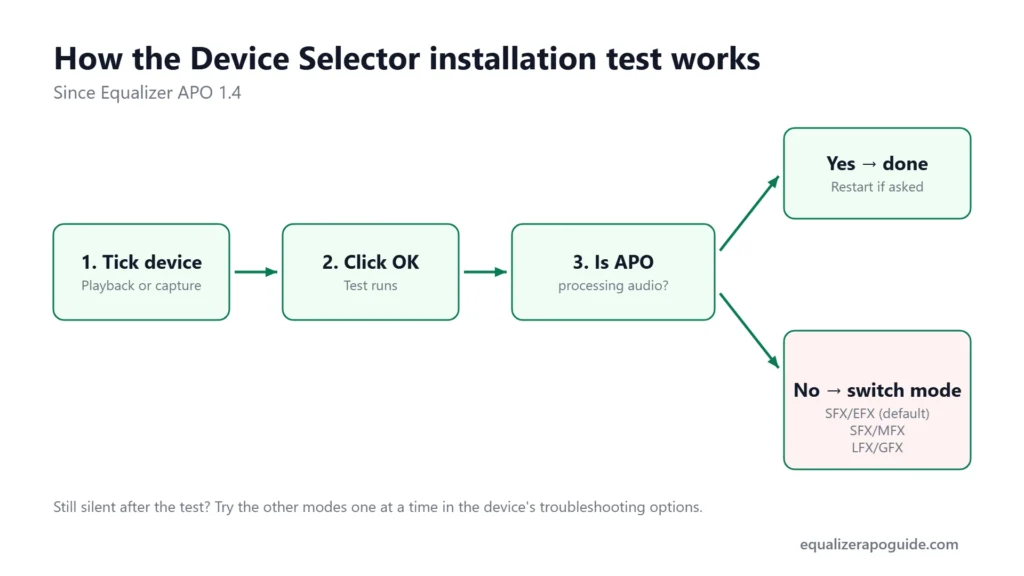
If the test still fails, open the device’s troubleshooting options in the Device Selector and try the other install modes one at a time. Since version 1.3.1 a change applies after you click OK, according to Peter Verbeek; older versions needed a restart. Change one thing, test, then change the next.
Why your device disappears after a Windows update
A Windows feature update can remove Equalizer APO from your audio devices. The program stays installed. The connection to the device is gone, so the EQ stops working and people assume it broke.
The fix is the Device Selector: open it, tick the device again, click OK, restart.
Verified · October 2026: On a Windows 11 24H2 machine that had just taken a cumulative update, Equalizer APO was no longer active on the output device. Re-ticking the device in the Device Selector restored it after a restart.
Peace’s Configurator button does nothing
Peace has a shortcut button that opens the Configurator. With Equalizer APO 1.4 and newer, that file is gone, so older Peace versions click into nothing. Verbeek confirmed this on the Peace forum for Peace 1.6.7.10 and earlier.
You have 2 fixes:
- Update Peace to the newest version from the official Peace SourceForge page.
- Copy the file. In
C:\Program Files\EqualizerAPO, copyDeviceSelector.exeand name the copyConfigurator.exe. This is the workaround Verbeek suggested.
More Peace problems are covered in the Peace GUI guide.
Your device isn’t in the list
- Unplugged or disabled. Plug it in, check it’s enabled in the Sound control panel, then reopen the Device Selector.
- Voicemeeter users on 1.4. The 1.4.1 release fixed a bug where only one Voicemeeter output showed up. Update to 1.4.2.
- Bluetooth headphones. They can appear as 2 devices (stereo and hands-free). Tick the one Windows uses for playback.
Disabled or disconnected in Windows. Open Control Panel > Sound, right-click an empty spot in the Playback (or Recording) list and tick Show Disabled Devices and Show Disconnected Devices. If your device appears greyed out, right-click it and choose Enable, then reopen the Device Selector.
It’s a microphone. Mics are on the Capture devices tab, not the Playback tab. Our mic not working guide covers the rest of the mic setup.
HDMI or DisplayPort audio. Monitor and TV outputs only show up while the screen is on and connected. Turn it on, wait for Windows to switch, then reopen the Device Selector.
USB headsets and DACs. These often show under a generic name such as “Speakers (USB Audio Device)” or the maker’s name, not the headset model. Unplug it, watch which entry disappears from the Sound control panel, and tick that one.
Audio interfaces that run on ASIO. ASIO goes around the Windows audio engine, so Equalizer APO can only process the interface’s regular Windows (WDM) output. Apps set to the ASIO driver won’t pass through it.
Still missing? Open Device Manager, expand Sound, video and game controllers, right-click your audio device and choose Update driver. If Windows already has the latest one, choose Uninstall device, restart, and let Windows reinstall it. Then open the Device Selector again. If the installer itself failed, see Equalizer APO not installing.
How to remove Equalizer APO from one device
Open the Device Selector, untick the device, click OK. Equalizer APO undoes its changes to that device. Your config files stay untouched, so ticking it again later brings your EQ straight back.
Removing Equalizer APO completely undoes the changes on every device, as Verbeek explains in the official support forum. Untick devices first, then uninstall, then restart.
Want it gone from every device? Follow our guide to uninstall Equalizer APO cleanly.
Target one device in your config
Ticking 2 devices applies the same config.txt to both. To give each its own EQ, add a Device: line. Everything below it only applies to the matching device:
Device: Headphones
Include: balanced.txt

Device: Speakers
Include: laptop.txt
The words only need to match part of the device name. The old Configurator had a button that generated this line for you; in 1.4.2, type it yourself. The Configuration Editor walkthrough shows how to add it from the menu.
Equalizer APO Device Selector FAQ
Last updated: October 2026 · Equalizer APO v1.4.2 · Windows 11 24H2
Written by Walter Green. Testing methodology and hardware →