Equalizer APO Mic Not Working? 8 Fixes for a Silent or Unchanged Mic
When Equalizer APO “doesn’t work” on a microphone, it’s usually one of two problems. Either the mic changes nothing at all (your EQ is on the wrong device), or the mic went quiet, silent or distorted after you set it up (gain, privacy or a driver setting).
Both have quick fixes. Start with the test below so you know which group you’re in.
1-minute test: open the Configuration Editor, pick your microphone in the device list, and add a Preamp of -20 dB. Talk while watching the input meter in Settings > System > Sound > your mic. If the meter drops, Equalizer APO is processing your mic and the problem is in your app or your settings. If nothing changes, Equalizer APO isn’t on that mic yet: start with Fix 1. Set the preamp back afterwards.
Symptom, cause and fix
| What happens | Most likely cause | Go to |
|---|---|---|
| Mic EQ changes nothing | Not installed on the capture device | Fix 1 |
| EQ works in Windows, not in Discord or a game | The app uses a different input device | Fix 2 |
| No app can hear the mic at all | Windows microphone privacy setting | Fix 3 |
| EQ worked, then stopped after an update | Audio enhancements turned off | Fix 4 |
| EQ ignored in one recording app only | Exclusive mode | Fix 5 |
| Mic silent, crackly or robotic | Preamp or boost set wrong | Fix 6 |
| Mic sounds boomy or bass-heavy | Your headphone EQ is also hitting the mic | Fix 7 |
| Bluetooth headset mic ignores the EQ | Hands-Free device not set up | Fix 8 |
Fix 1: Install Equalizer APO on the capture device
This catches most people. During setup, Device Selector opens on the Playback devices tab, so it’s easy to tick your headphones and never touch the microphone. Equalizer APO only processes devices that are ticked.
- Open Device Selector from the Start menu.
- Switch to the Capture devices tab.
- Tick the microphone you actually talk into, click OK and restart Windows.
Not sure which entry is your mic? Open Settings > System > Sound, talk, and watch which input’s meter moves. Our Device Selector guide has screenshots of both tabs.
Fix 2: Make your app use the same mic
Equalizer APO works on a device, and each app picks its own input. If Discord, OBS or a game is set to a different entry, such as a webcam mic or a virtual device, it never passes through your EQ.
- In Windows, set your mic as the default device and the default communications device (Control Panel > Sound > Recording, right-click the mic).
- In the app, pick that exact mic by name instead of “Default”.
- If you route the mic through a virtual device (Voicemeeter, NVIDIA Broadcast), keep Equalizer APO on the physical mic that feeds it.
Discord has its own processing on top of this. Our Discord setup guide covers which Discord voice settings to turn off.
Fix 3: Check Windows microphone privacy
If no app hears you at all, Windows may be blocking the mic before Equalizer APO is even involved.
- Open Settings > Privacy & security > Microphone.
- Turn on Microphone access.
- Scroll down and turn on Let desktop apps access your microphone. Discord, OBS and most games are desktop apps.
Fix 4: Turn audio enhancements back on for the mic
Windows skips APOs, including Equalizer APO, on any device where audio enhancements are off. Driver updates and some “fix my mic” guides switch this off.
Go to Settings > System > Sound, click your microphone under Input, and set Audio enhancements to Device Default Effects. If the mic disappeared from Device Selector after a driver update, tick it again on the Capture devices tab and restart.
Fix 5: Turn off exclusive mode
Some recording and streaming apps take exclusive control of the mic. Exclusive mode sends audio straight to the app and skips the Windows audio engine, so Equalizer APO never sees it.
- Open Control Panel > Sound > Recording.
- Double-click your mic and open the Advanced tab.
- Untick Allow applications to take exclusive control of this device and click OK.
Also check the app itself. Apps that record through an ASIO driver go around the Windows audio engine too, so pick a Windows input (MME or WASAPI shared) in the app’s audio settings.
Fix 6: Fix a silent, crackly or robotic mic
Mic signals are much quieter than music, which tempts people into big boosts. A large boost clips and sounds crackly or robotic. A large cut can make the mic sound dead.
- Open the Configuration Editor with your mic selected and check Peak gain in the Analysis panel. Keep it at 0 dB or lower.
- Raise volume in small steps: first the Windows input level (Control Panel > Sound > Recording > Levels), then a few dB of Preamp in Equalizer APO.
- If the mic went silent, reset the mic config to a single
Preamp: 0 dBline and build up again.
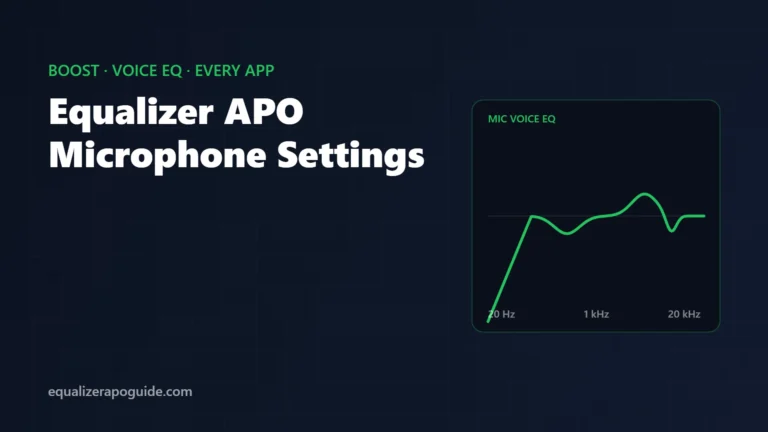
Our microphone settings guide has a starting voice EQ and safe boost amounts.
Fix 7: Stop your headphone EQ from hitting the mic
If config.txt has no Device: lines, every filter in it applies to every device you ticked, mic included. A bass boost meant for your headphones turns your voice boomy and muddy.
Split the file into one section per device. The easiest way is the device list at the top of the Configuration Editor, which writes the correct name for you. The result looks like this, with your own device names:
Device: Headphones (your headset name)
Preamp: -6 dB
Filter: ON LSC Fc 105 Hz Gain 6 dB

Device: Microphone (your mic name)
Preamp: 0 dB
Our config.txt guide explains the Device: command in detail.
Fix 8: Bluetooth headset mics
A Bluetooth headset’s mic only exists on its Hands-Free device. On the Capture devices tab, tick the Hands-Free entry for your headset. The Stereo entry has no mic.
When the mic is active, the headset’s sound also switches to Hands-Free, which is lower quality. That’s how Bluetooth headsets work, and no EQ can change it. For better voice quality, use a USB or wired mic.
Equalizer APO mic not working: FAQ
Speakers or headphones silent too? See our Equalizer APO no sound guide. For general problems, start with Equalizer APO not working.