Equalizer APO Microphone Settings: Boost, EQ & Presets
“Can you speak up?” For the third time this call.
Mic EQ doing nothing, or the mic went silent? Go to our Equalizer APO mic not working guide first, then come back here to tune it.
Your Windows mic slider is already at 100. The “Microphone Boost” option your old PC had is missing. You lean closer, talk louder, and still sound like you’re calling from the next room.
Equalizer APO fixes this for free. It can push your microphone past the Windows limit and shape your voice with EQ, and every app that uses the mic gets the result: Discord, Zoom, Teams, OBS, games. The catch is that almost every guide skips 2 steps, and those 2 steps are why so many people say it “doesn’t work on mics”.
Jump to your problem:
🔇 Mic too quiet? Boost it safely
🎙️ Voice sounds muddy or thin? Starting EQ for voice
🎧 Headphone EQ changed your mic? Separate them
💬 Works everywhere except Discord? Discord setup guide
How Equalizer APO processes a microphone
Equalizer APO sits inside the Windows audio engine. On a microphone, it processes the signal before any app receives it. You set it up once and Discord, Zoom and OBS all get the same boosted, EQ’d voice.
There’s one exception. An app that grabs the mic in exclusive mode bypasses Equalizer APO completely. That’s the usual reason it works in one app and not another, and it’s fixable (covered below).
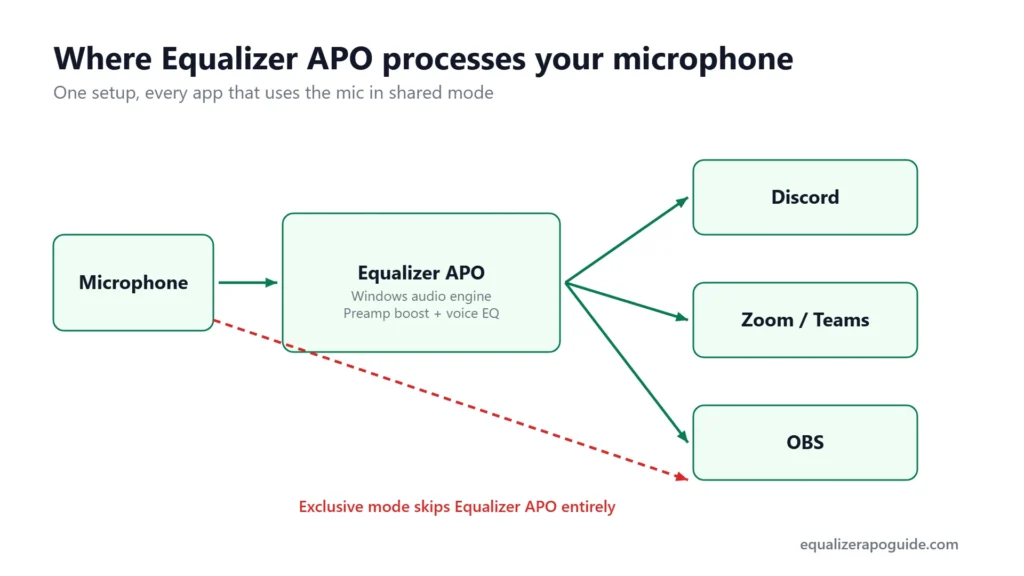
Step 1: Install Equalizer APO on the microphone
Installing Equalizer APO doesn’t touch your mic unless you pick it.
- Open the Device Selector (it replaced the Configurator in version 1.4).
- Switch to the capture (recording) devices list.
- Tick your microphone. If you use a headset, tick the headset’s mic entry, not the speakers.
- Click OK and restart if asked.
Step 2: Prove it’s working before you tune anything
Add these 2 lines at the bottom of config.txt (C:\Program Files\EqualizerAPO\config), using a word from your mic’s name in Windows Sound settings:
Device: Microphone
Preamp: +10 dB
Now record yourself for 10 seconds in Windows Sound Recorder or Audacity. Change +10 to 0, save, record again. The first recording should be clearly louder.
Judge by the recording, not by how loud you sound to yourself. A recording is exactly what other apps receive.
No difference? The mic isn’t ticked in the Device Selector, or the word after Device: doesn’t match your mic’s name. Rename the mic in Sound settings (for example MY MIC) and use Device: MY MIC.
Step 3: Boost a quiet mic
The boost is the Preamp line under your mic’s Device line. Positive numbers make it louder.
| Starting point | When |
|---|---|
| +6 dB | Slightly quiet; friends turn you up a little |
| +10 dB | Clearly quiet; the common case for headset and laptop mics |
| +15 dB and up | Very quiet mics only; expect more background hiss |
Raise it in steps of 3 dB and record each time. Antlion Audio’s ModMic guide notes that many quiet mics take +10 dB steps and still sound good.
Two limits apply:
- A digital boost raises the noise too. Fan hum and room hiss get louder by the same amount as your voice. If your mic or interface has a hardware gain knob, turn that up first and use Equalizer APO for the rest.
- Too much boost clips. If loud words sound crunchy or distorted in the recording, back off 3 dB.
Step 4: A starting EQ for voice
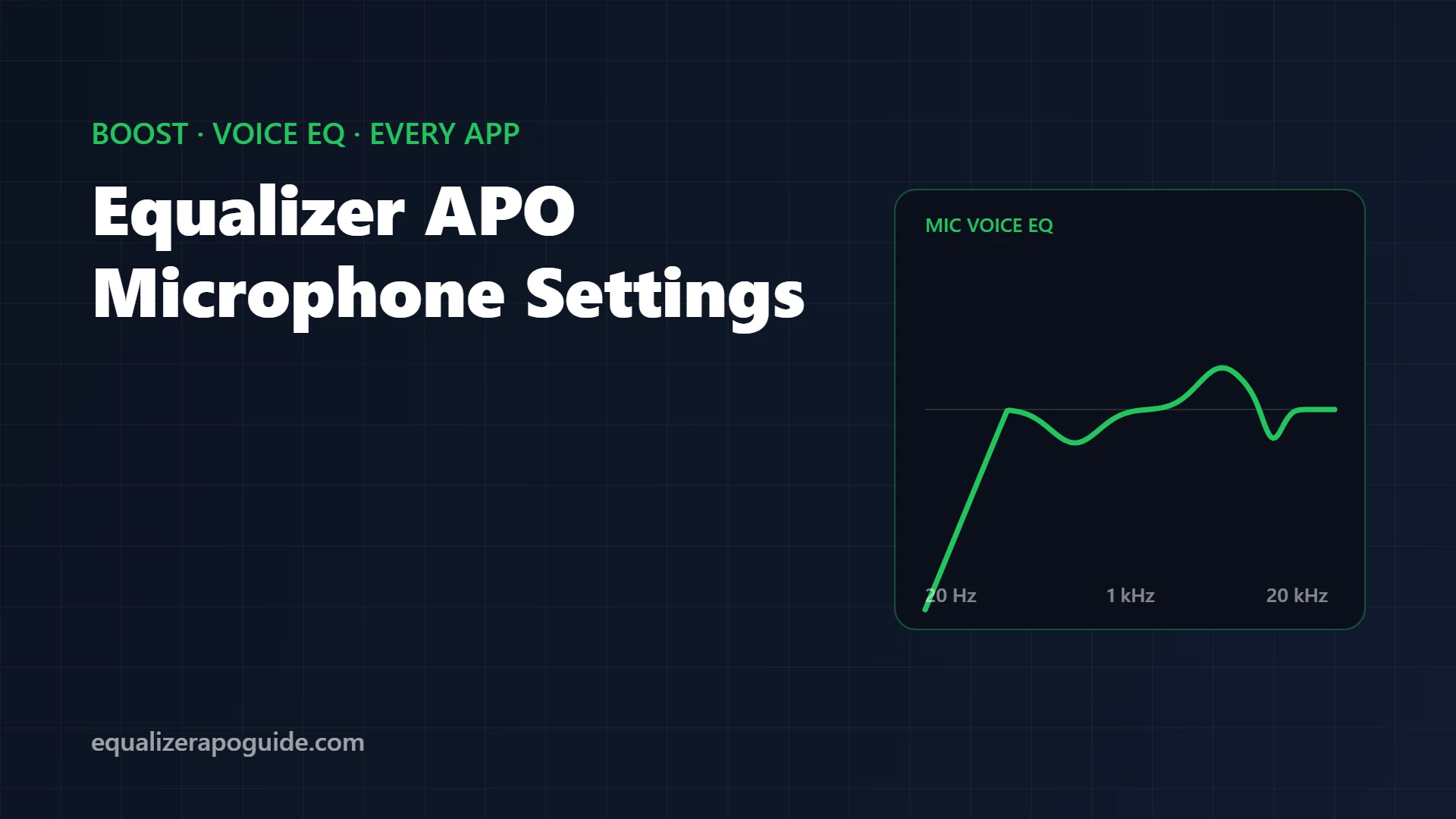
Once the level is right, 4 filters handle most voice problems. Treat these as a starting point. Every voice and mic is different, so record, listen and adjust.
Device: Microphone
Preamp: +8 dB
Filter: ON HP Fc 80 Hz
Filter: ON PK Fc 250 Hz Gain -2 dB Q 1.0
Filter: ON PK Fc 3000 Hz Gain 2 dB Q 1.0
Filter: ON PK Fc 7000 Hz Gain -2 dB Q 2.5| Filter | Fixes |
|---|---|
| High-pass at 80 Hz | Desk thumps, fan rumble, plosive “p” pops |
| Cut at 250 Hz | Boomy, boxy “talking into a cup” sound |
| Lift at 3 kHz | Speech clarity; helps you cut through game audio |
| Narrow cut at 7 kHz | Harsh “s” sounds (only if you hear them) |
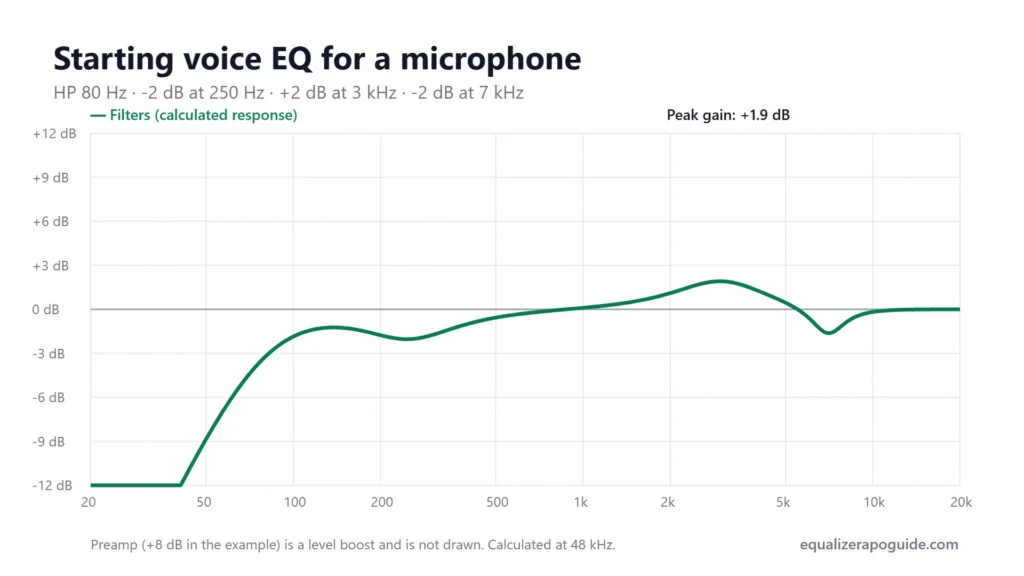
These are the same moves behind the podcast and voice-call presets on my Equalizer APO settings page, adapted for the input side.
Adjust by mic type
- USB condenser mics (Blue Yeti, HyperX QuadCast): usually bright already. Skip the 3 kHz lift and keep the 7 kHz cut.
- Headset mics: often thin. Try a smaller 250 Hz cut (-1 dB) and keep the 3 kHz lift.
- Laptop mics: pick up keyboard and fan noise. Raise the high-pass to 100 Hz, and consider noise suppression instead of more boost.
Keep your mic EQ separate from your headphone EQ
This one surprises people. Lines without a Device line above them apply to every device Equalizer APO is installed on, including your microphone. Paste a bass-boost preset at the top of config.txt and your voice gets the bass boost too.
Give each device its own block:
Device: Headphones
Include: balanced.txt

Device: Microphone
Include: mic.txt
Put your mic settings in mic.txt in the same folder. This is also the setup Peace users on the official forum recommend: keep the mic in its own included file. If you use Peace GUI, it rewrites config.txt, so a separate file keeps your mic settings safe.
Remove background noise
EQ can cut rumble and hiss bands, but it can’t separate your voice from a keyboard. For that, Equalizer APO can run a noise suppression plugin system-wide. The free, open-source RNNoise plugin is the common choice. Read its readme for the sample rate it needs, and load it on the mic’s Device block.
Works in Audacity but not in Discord or a game?
The app is probably using the mic in exclusive mode, which skips Equalizer APO. Fix it in Windows:
- Open the Sound control panel (
mmsys.cpl) and go to the Recording tab. - Open your mic’s Properties → Advanced.
- Uncheck Allow applications to take exclusive control of this device and the priority box below it.
- If there’s an Enable audio enhancements checkbox, keep it checked.
Discord has its own extra settings that can undo your EQ. They’re all in the Equalizer APO Discord guide.
5 microphone mistakes
- Not ticking the mic in the Device Selector. Without it, nothing in the config reaches your mic.
- No Device line. Your headphone preset ends up on your voice.
- Boosting before fixing hardware gain. You amplify noise you didn’t need to.
- Judging by ear while talking. Record and play it back.
- Stacking app processing on top. Discord’s or Zoom’s own gain control can fight your boost. Pick one place to process your voice.
Equalizer APO microphone FAQ
Last updated: October 2026 · Equalizer APO v1.4.2 · Windows 11 24H2
Written by Walter Green. Testing methodology and hardware →