How to Use Equalizer APO: Your First EQ in 5 Steps (v1.4.2)
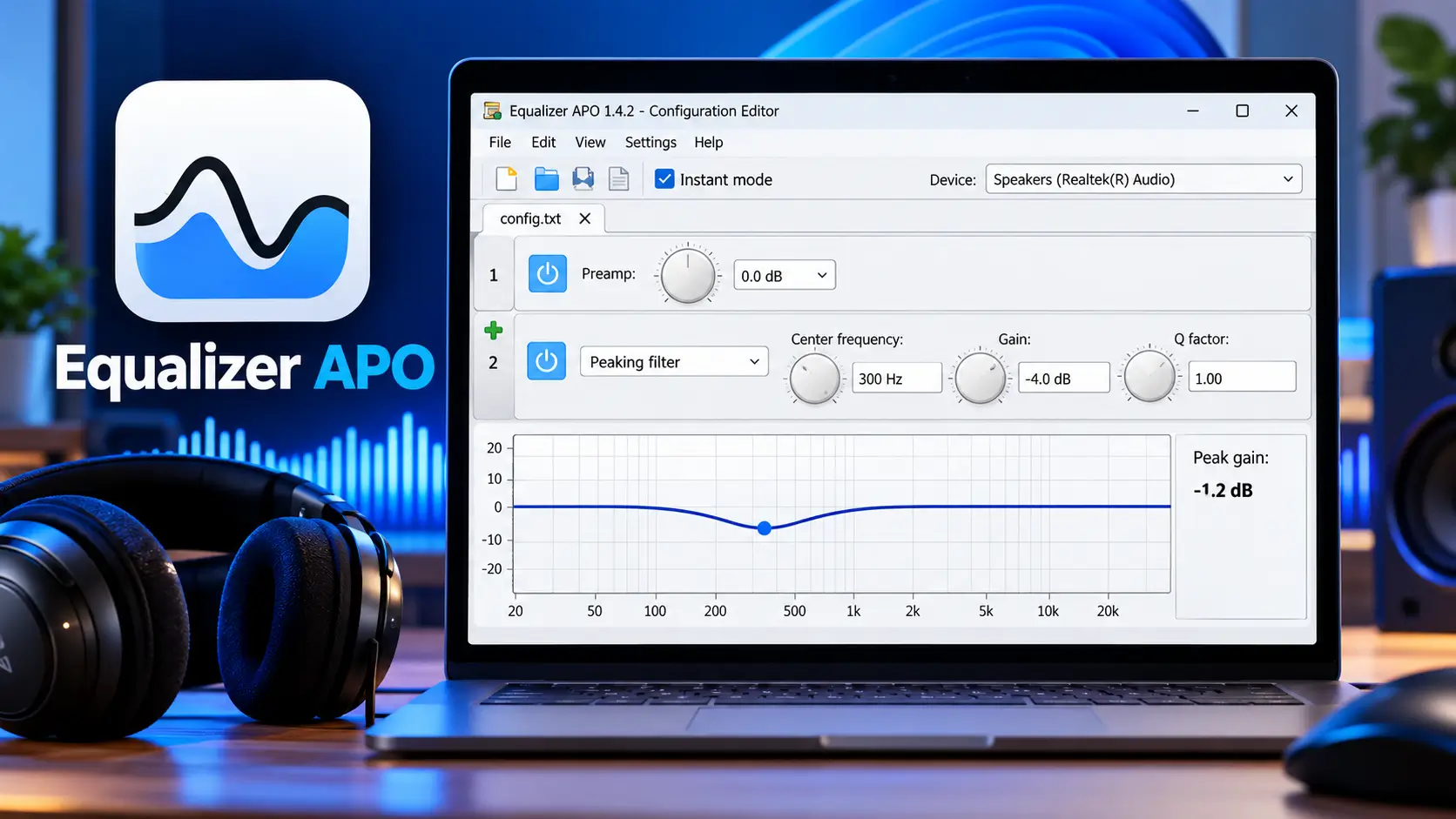
You installed it. You restarted. You opened the Configuration Editor, and it looked back at you: a config.txt tab, a line that says Include: example.txt, a flat graph, and a green plus icon hiding a long menu of filter types. No sliders. No “bass” button. Just Fc, Gain and Q. So you copied a preset from Reddit, pasted it in, and your music sounded exactly the same. Or worse, it started crackling.
I know that feeling. My first Equalizer APO install sat on the wrong device for 2 days while I blamed the presets. The editor was never the problem. Nobody had shown me the 4 things on that screen that matter, or the 60-second test that proves anything is happening.
This is how to use Equalizer APO once it is installed: the Configuration Editor, your first real filter, the one number that stops crackling, and how to load presets without wrecking your setup. Tested on Equalizer APO 1.4.2 and Windows 11 24H2.
Before you start: prove Equalizer APO is running
The Configuration Editor shows filters and a live graph even when Equalizer APO is doing nothing to your audio. A moving graph proves nothing. This test does:
- Open
C:\Program Files\EqualizerAPO\config\config.txtin Notepad. - Change the first line to
Preamp: -15 dBand save. - Play music.
Volume drops at once: you are ready. Set the preamp back to 0 dB. Nothing changes: Equalizer APO is attached to a device you are not listening on. Go back to the device step in the setup guide, then run this test again. Don’t touch the editor until it passes.
Verified · October 2026: On Equalizer APO 1.4.2 and Windows 11 24H2, a saved change was audible within 0.5 to 1.5 seconds. No restart needed after the first install restart.
How to open the Configuration Editor
Open the Start menu and type Configuration Editor. If search doesn’t find it, run Editor.exe from C:\Program Files\EqualizerAPO\.
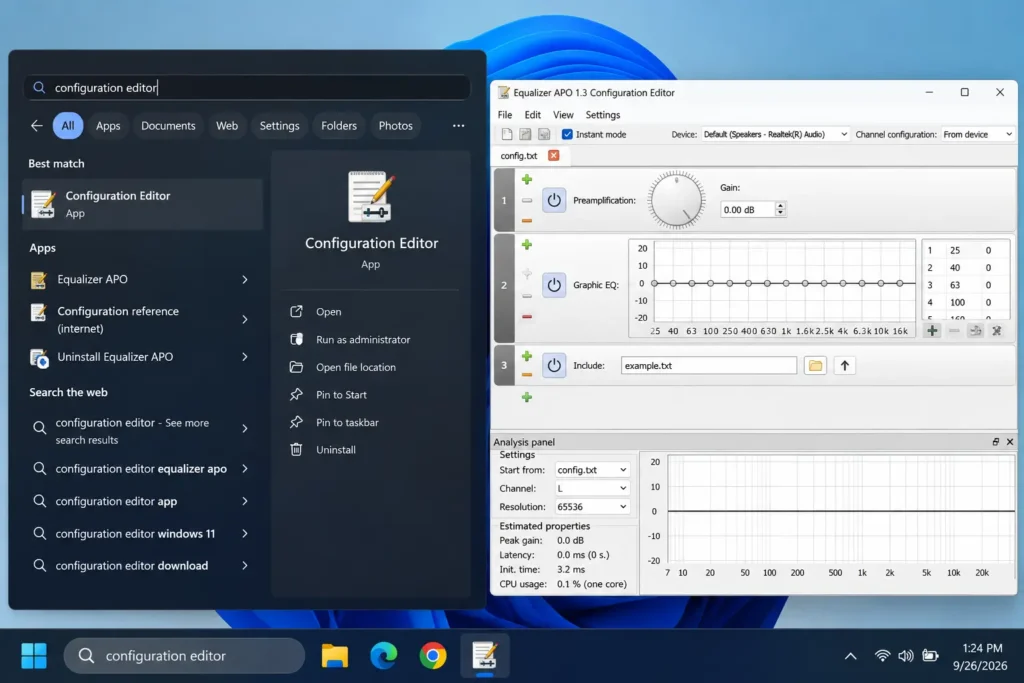
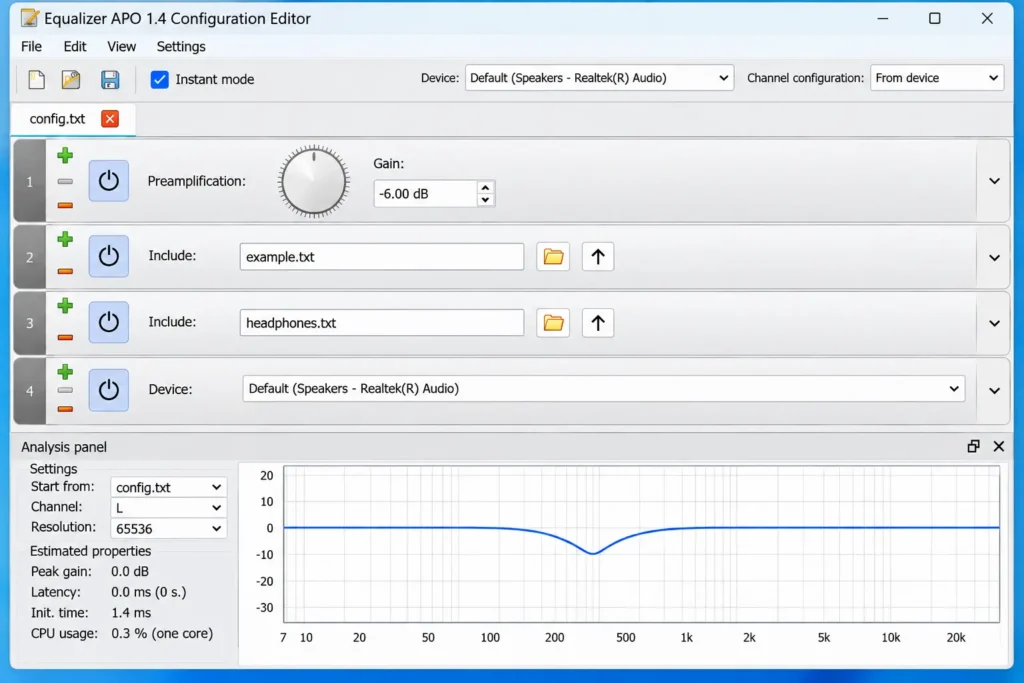
It opens config.txt, the one file Equalizer APO reads. On a fresh install that file holds 2 lines: a Preamp value and Include: example.txt, which loads a demo filter. Everything you build here applies to every app on the device: Spotify, games, Discord, browsers.
On Windows 11 the editor follows your light or dark mode (added in version 1.4). Change it in Settings → Personalization → Colors.
The 4 parts of the Configuration Editor
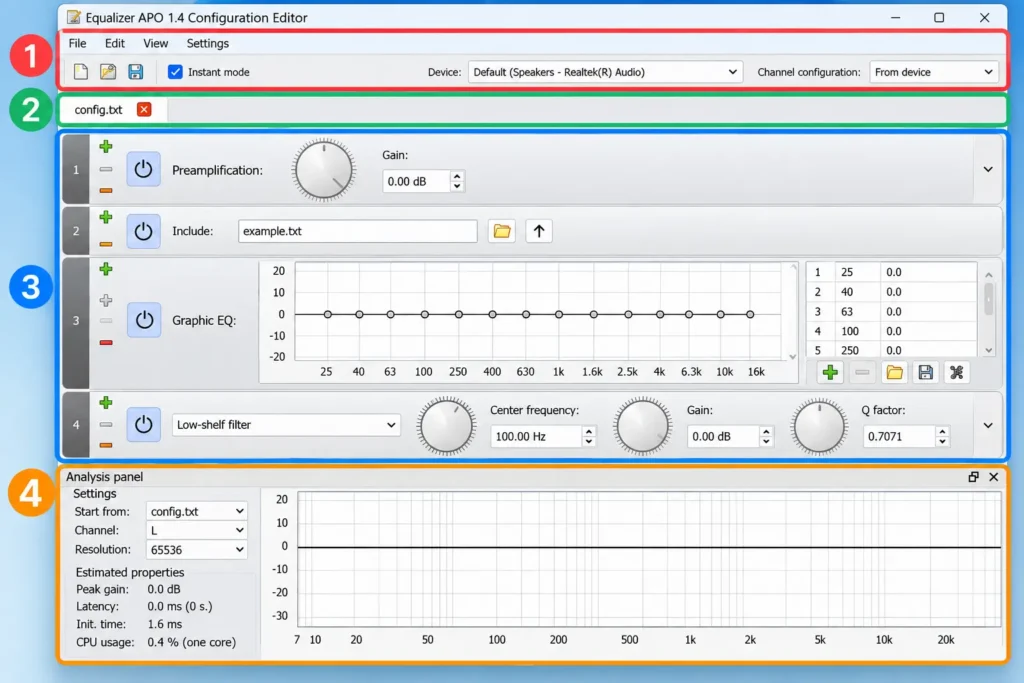
| # | Part | What it does |
|---|---|---|
| 1 | Toolbar | File buttons, the Instant mode checkbox, and the Device dropdown |
| 2 | File tabs | One tab per open file. config.txt is the live system config |
| 3 | Filter list | One row per command, applied top to bottom. The green + adds a row; each row can be switched off or removed |
| 4 | Analysis panel | The calculated frequency response of all active rows, plus Peak gain |
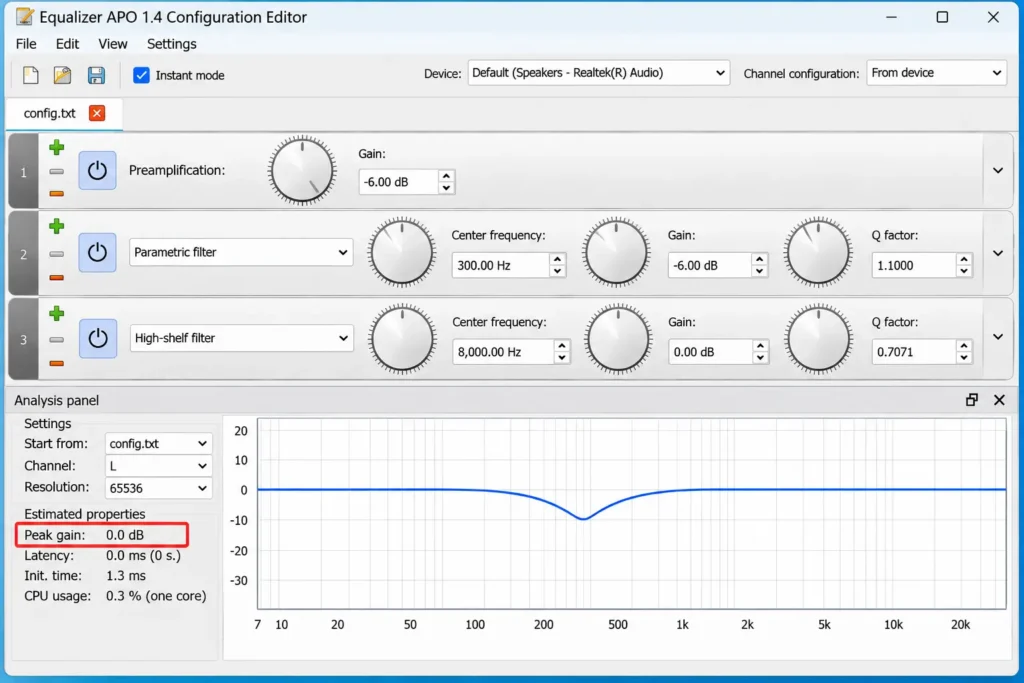
Spend 10 seconds on part 4. Peak gain shows how far your filters push the signal above 0 dB. Above 0 dB, loud moments clip, and clipping sounds like crackling. Most “Equalizer APO ruined my audio” complaints are this one number.
Hover over the graph and scroll the mouse wheel to zoom.
How to use Equalizer APO: your first EQ in 5 steps
We’ll fix the boxy, “cupped hands” sound that most headphones have around 300 Hz. It’s the same cut used in my Balanced preset, tested on a Sennheiser HD 560S and a Sony WH-1000XM4. Once you can do this, you can build any EQ.
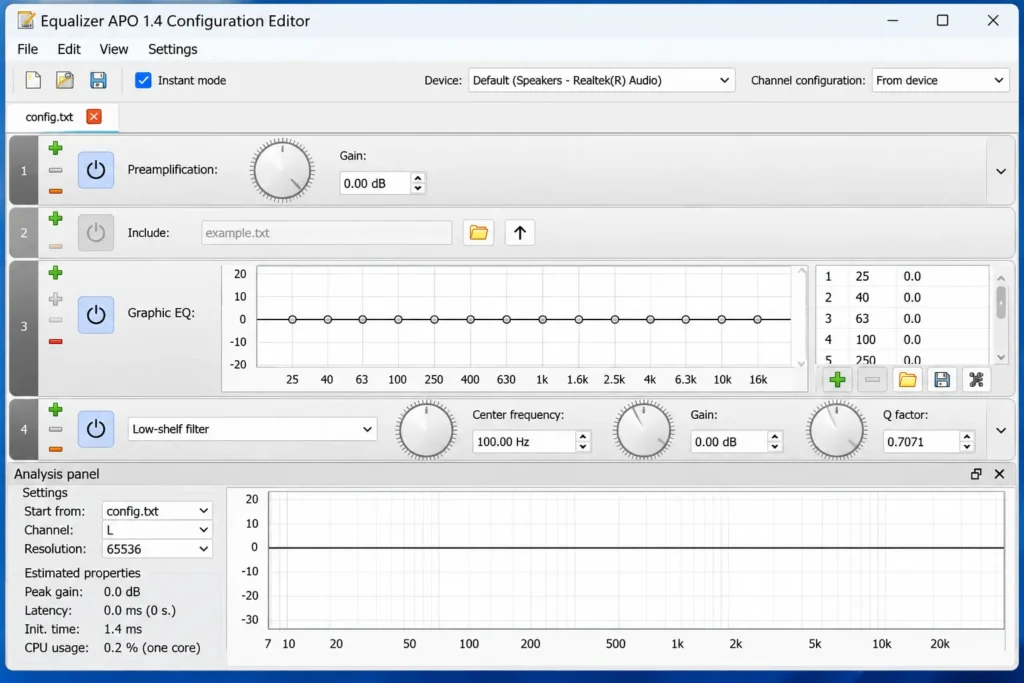
Step 1: Start from a flat line
In the config.txt tab, switch off the Include: example.txt row and set Preamp to 0 dB. The graph goes flat. You now hear your headphones exactly as they are.
Step 2: Add a peaking filter
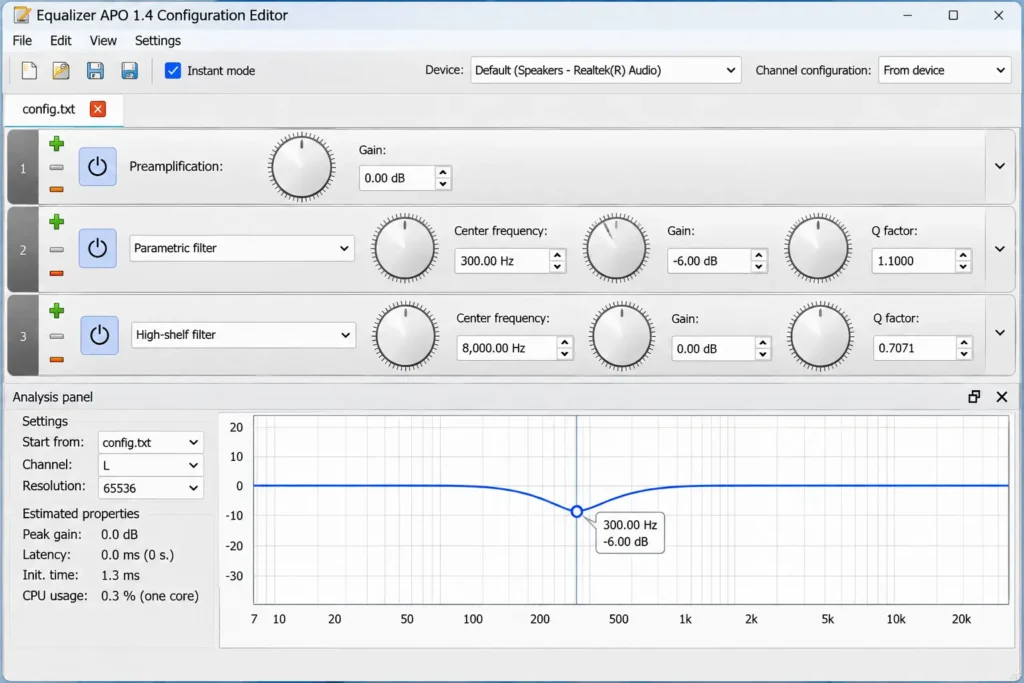
Click the green + and pick the parametric (peaking) filter. A new row appears under Preamp.
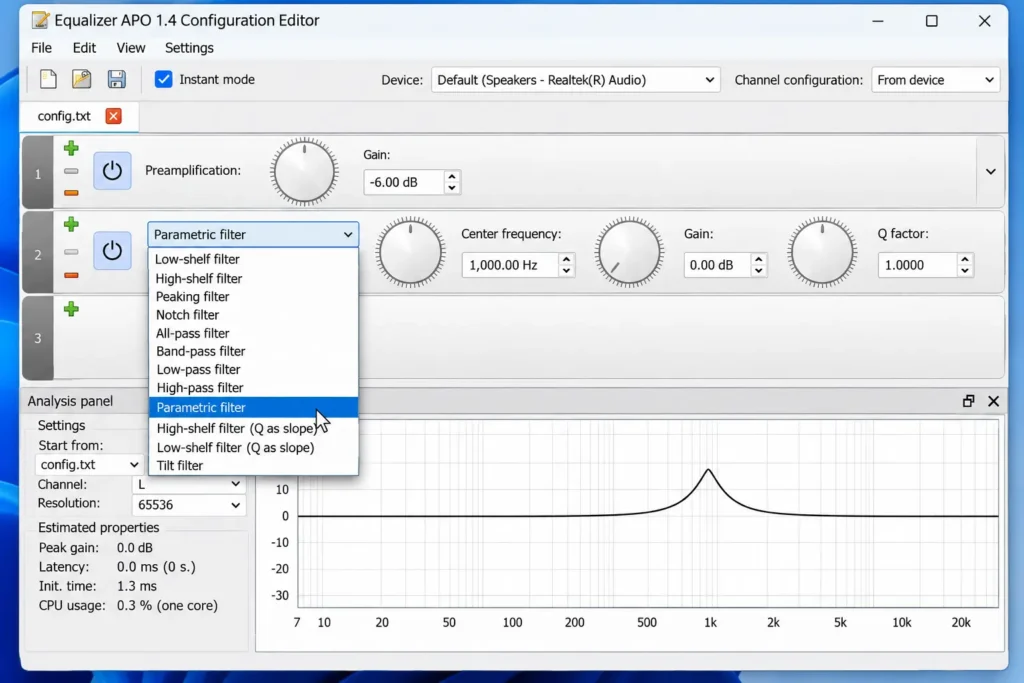
Step 3: Set frequency, gain and Q
|
Field |
Value |
Meaning |
|
Type |
Peak (PK) |
Boosts or cuts around one frequency |
|
Frequency (Fc) |
300 Hz |
Center of the change |
|
Gain |
-2 dB |
A cut. Cuts can’t clip |
|
Q |
1.10 |
Width. Low Q is wide, high Q is narrow |
In plain text, the row reads:
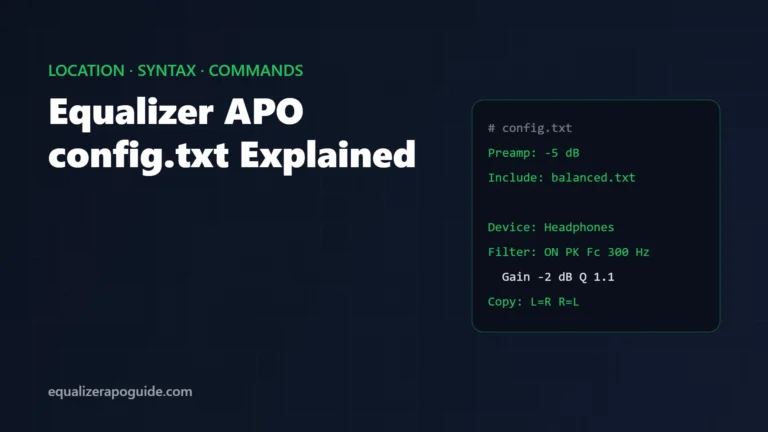
Filter: ON PK Fc 300 Hz Gain -2.0 dB Q 1.10The graph now dips at 300 Hz. Drag the Q from 0.7 to 4 and watch the dip go from wide to surgical. That one experiment teaches Q faster than any definition.
Step 4: A/B it with the same song
Play a track you know by heart. Switch the filter row off and on while it plays. Same song, same volume, one change. Keep the filter only if “on” sounds better. If you can’t tell, the change is too small or in the wrong place.
Step 5: Check peak gain before you boost
Cuts are safe. Boosts need room. Change the gain to +4 dB and peak gain rises to about +4 dB. Now lower Preamp until peak gain sits at or just under 0 dB.
My rule: Preamp = your biggest boost, made negative, minus about 1 dB. A +6 dB boost wants roughly Preamp: -7 dB.
Instant mode: keep it on or off?
Instant mode is the checkbox in the toolbar. It’s on by default, and its tooltip says exactly what it does: changes are saved immediately. You hear every edit as you make it.
|
Instant mode |
What happens |
Use it when |
|
On (default) |
Each edit is saved and heard at once |
Tuning by ear |
|
Off |
Nothing changes until you save |
Editing a big preset, or switching presets without sudden volume jumps |
If the graph and your ears disagree, check this box first. With Instant mode off, the file on disk still holds your last saved version, and that’s what you’re hearing.
How to load a preset without wrecking your setup
Most people paste presets straight into config.txt. It works once. Then you paste a second one, forget to delete the first, and 2 presets stack on top of each other.
Use Include instead. Save each preset as its own file in C:\Program Files\EqualizerAPO\config\, for example bass.txt and fps.txt. Then turn config.txt into a switchboard:
Preamp: 0 dB
Include: bass.txt
Include: fps.txt
Switch off every Include row except the one you want. Changing presets now takes 2 clicks, and your originals never get overwritten. This is also how example.txt is loaded on a fresh install.
Need presets to start with? Copy any of my 20 tested Equalizer APO settings into its own file and include it.
How to use Equalizer APO on 2 devices with different EQ
The Device dropdown in the toolbar does not choose where your filters apply. It only chooses which device the analysis graph shows. To target a device, add a Device row from the green + menu (under the control commands), or type it:
Device: Headphones
Include: balanced.txt

Device: Speakers
Include: laptop.txt
Everything under a Device row applies to that device only. The name only has to partly match what Windows Sound settings shows. If 2 devices share a word, rename one in Sound settings.
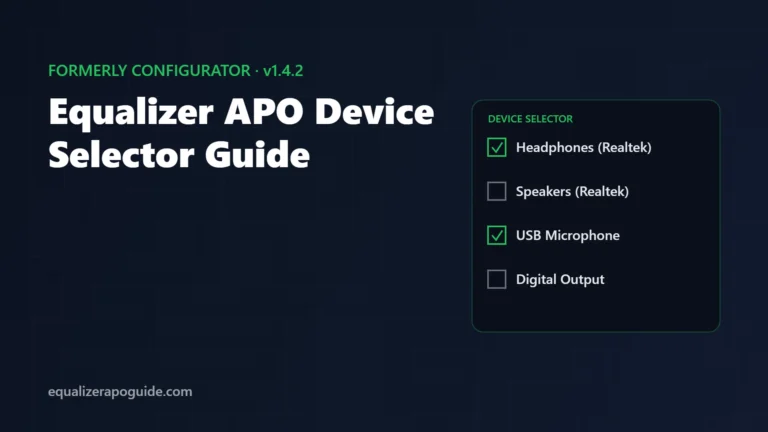
One catch: the device must also be ticked when Equalizer APO is installed on it. If it isn’t, no Device row can reach it. That’s the same fix covered in Equalizer APO not working.
Does Equalizer APO need to stay open?
No. Equalizer APO runs inside the Windows audio engine, so your filters apply whenever Windows plays sound, from the moment you log in. The Configuration Editor is just for editing. Close it and your EQ keeps working.
That’s why there’s no tray icon and no master on/off switch. To pause your EQ, switch off the rows or set everything flat.
Where your settings are saved
Everything lives in C:\Program Files\EqualizerAPO\config\. config.txt is the only file Equalizer APO reads directly. Any other .txt file in that folder does nothing until config.txt includes it.
To back up your setup, copy the whole config folder somewhere safe. To restore it, paste it back. Every command you can use is listed in the official configuration reference.
5 mistakes I see in the Configuration Editor
- Tuning before testing. The graph moves even when Equalizer APO is doing nothing. Run the preamp test first.
- Boosting with Preamp at 0 dB. Peak gain goes above 0 dB and loud parts crackle.
- Using the Device dropdown as a device switch. It only changes the graph. Use
Device:rows. - Forgetting Instant mode is off. Your edits do nothing until you save.
- Pasting preset on top of preset. They add together. One Include row per preset.
Still hear no change?
Work down this list:
- Run the preamp test again. If the volume doesn’t drop, the install is the problem, and no filter will help.
- Open your device in the Windows Sound control panel. On an Enhancements tab, make sure “Disable all enhancements” is unchecked. On an Advanced tab, make sure “Enable audio enhancements” is checked.
- Check your player. Apps using WASAPI exclusive mode or ASIO (foobar2000, Tidal, Roon when set that way) bypass Equalizer APO.
- Did a Windows update just install? Updates often detach Equalizer APO from your devices.
The full ranked list is in my 10 fixes for Equalizer APO not working.
What to do next
You can now build, test and switch an EQ. From here:
- Want sliders, presets and hotkeys? Set up Peace GUI. It writes to the same
config.txt. - Want a starting point? Grab a tested preset for music, gaming or movies.