Equalizer APO on Discord: Mic & Output Setup (and Fixes)
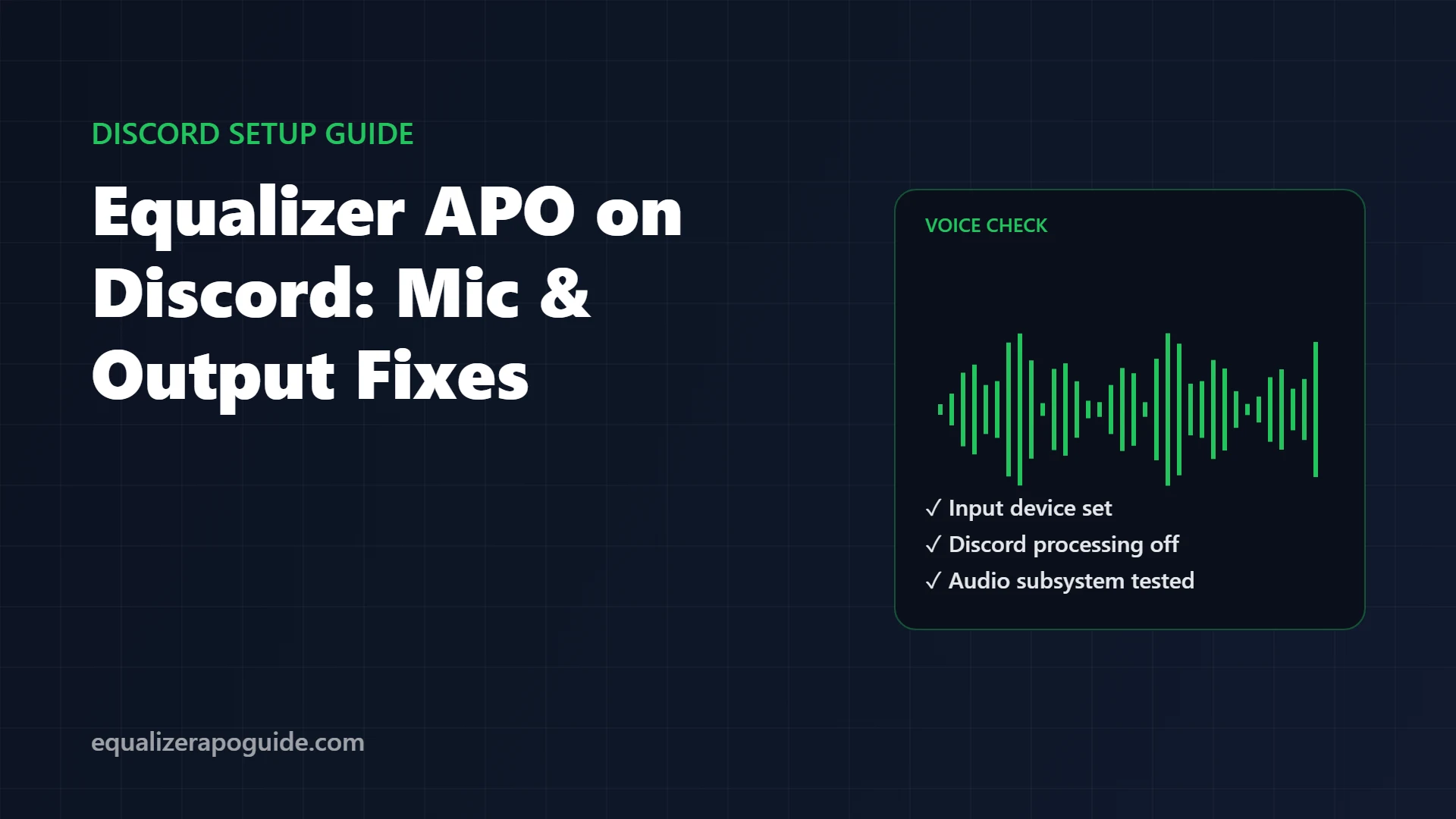
Your mic EQ works in Audacity. It works in OBS. You can hear it with “Listen to this device”. Then you join a Discord call and your friends hear the same flat, quiet, untouched mic as before.
It isn’t you. Discord is the app Equalizer APO users complain about most, and the official forums are full of threads that end with a different fix each time. Discord does its own audio processing, can grab your mic in a way that skips Equalizer APO, and keeps separate settings per device.
This guide puts every working fix in one order, from the 30-second checks to the ones that took forum users weeks to find. It covers both sides: what you hear in Discord, and what your friends hear from you.
Jump to your problem:
🎙️ Friends hear your raw mic? Mic checklist
🔊 Your EQ doesn’t apply to Discord voices? Output setup
❌ Mic disappeared from Discord? Mic not detected
🔄 Works on one PC or account, not another? Per-device settings
How Equalizer APO and Discord fit together
There are 2 separate paths:
| Path | What it is | Where Equalizer APO must be installed |
|---|---|---|
| Output | Your friends’ voices and Discord sounds, coming to you | Your headphones or speakers |
| Input | Your voice, going to your friends | Your microphone (capture side) |
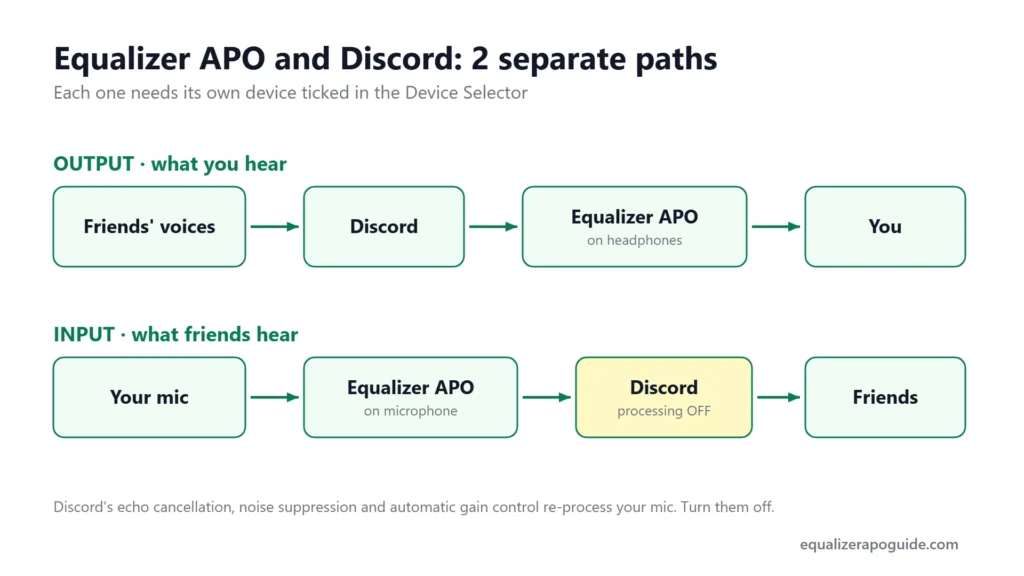
Each one needs its own setup. Output almost always works on its own. Input is where Discord causes trouble.
Discord output: hearing your EQ on calls
Discord’s audio goes through Windows like any other app, so your headphone EQ applies to calls automatically, with one condition: Discord must play through the device Equalizer APO is installed on.
- In Discord, open User Settings → Voice & Video.
- Check Output Device. Pick the exact headphones you ticked in the Device Selector, or leave it on Default if those headphones are your Windows default.
- Join a call and toggle your EQ off and on to hear the difference.
That’s usually it. If it still sounds untouched, the problem is the install, not Discord. Run the preamp test in Equalizer APO not working.
Discord mic checklist
Work through these in order and test after each one. Most people are fixed by step 4.
1. Install Equalizer APO on the mic
Ticking your headphones doesn’t cover your microphone. In the Device Selector, switch to the capture devices list, tick the mic, click OK, restart if asked. Then confirm the boost works in a plain recording first, as shown in Equalizer APO microphone settings. If it doesn’t work in a recording, Discord settings won’t help.
2. Select the right input device in Discord
In Voice & Video, set Input Device to the mic you ticked. Picking it by name is safer than Default, especially if you have a webcam mic or a headset that adds a second input.
3. Turn off Discord’s own processing
Discord runs its own voice processing on top of yours. Automatic gain control can pull your boost back down, and noise suppression and echo cancellation reprocess the EQ you just built. Turn these off in Voice & Video:
- Echo Cancellation
- Noise Suppression
- Automatic Gain Control
This is also the setup the Soundpad developer recommends for any Windows audio tool that processes your mic before Discord. If you want noise suppression, run it inside Equalizer APO instead so all processing happens in one place.
4. Change Discord’s audio subsystem
This is the fix that ends most forum threads, and the frustrating part is that the winning option differs between PCs:
- One user’s fix was switching from Automatic to Standard.
- Peace developer Peter Verbeek reported that Automatic worked for others, and that someone else needed Legacy.
- In one support ticket, the PC where Equalizer APO failed was set to Experimental.
So: try Standard, then Legacy, then Automatic. Restart Discord after every change, because the subsystem only switches on restart. You’ll find the option under Voice & Video → Advanced (Discord moves settings between updates, so search for “audio subsystem” if it isn’t there).
5. Stop Discord from taking exclusive control of the mic
If an app opens your mic in exclusive mode, it skips every audio processing object, Equalizer APO included. Verbeek gives this as the likely cause when the EQ works everywhere except Discord.
- Close Discord completely (right-click the tray icon → Quit Discord).
- Run
mmsys.cplfrom the Start menu to open the Sound control panel. - Recording tab → your mic → Properties → Advanced.
- Uncheck Allow applications to take exclusive control of this device and Give exclusive mode applications priority.
- If you see Enable audio enhancements, keep it checked.
- Click OK and reopen Discord.
6. Test it the right way
Use Discord’s mic test (Voice & Video → Let’s Check) and switch your Equalizer APO mic lines off and on while you talk. With a +10 dB boost the difference is obvious. If you can’t hear any change here, go back to step 4 and try the next subsystem option.
Mic not detected after installing Equalizer APO
Sometimes Discord stops seeing the mic at all after the install.
- In Windows Sound settings, set the mic as the default recording device.
- In Discord, reselect it under Input Device.
- Fully quit and reopen Discord.
If the mic is missing from Windows too, untick it in the Device Selector, click OK, restart, and tick it again.
Works on one PC or account, not another
Discord stores voice settings per installation. In one Equalizer APO ticket, the same mic sounded processed on one setup and raw on another; the difference turned out to be the audio subsystem option, which was set differently on each PC. Check steps 3 and 4 on every PC you use.
Quick reference: symptom to fix
| Symptom | Most likely fix |
|---|---|
| EQ works in recordings, not in Discord | Step 4 (audio subsystem), then step 5 (exclusive mode) |
| Boost works, then fades back down while talking | Step 3 (Automatic Gain Control off) |
| Friends hear nothing at all | Mic not detected section |
| Your headphone EQ missing from calls | Output device setup |
| Fine on desktop app, different on another PC | Per-device settings |
Equalizer APO Discord FAQ
Last updated: October 2026 · Equalizer APO v1.4.2 · Windows 11 24H2
Written by Walter Green. Testing methodology and hardware →