Equalizer APO config.txt: Location, Syntax & Commands Explained
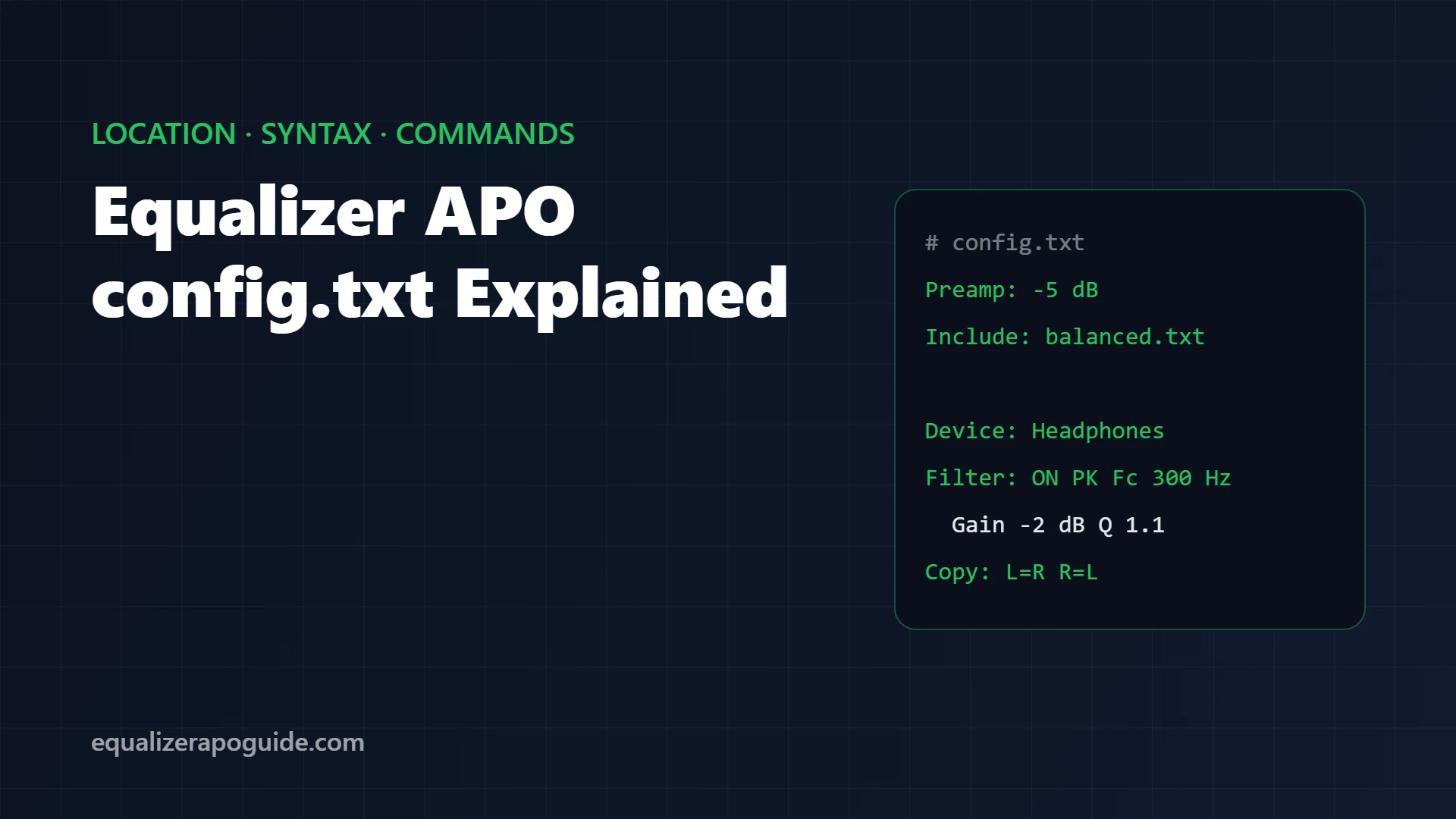
You paste a preset into config.txt, save, press play, and nothing changes. Or half of it changes. Or the left channel suddenly gets twice the bass. No error, no warning, no clue.
That silence is by design. Equalizer APO quietly ignores any line it can’t read, so one typo can switch off a whole preset and you’d never know.
This is the reference I wish I’d had: where config.txt lives, how Equalizer APO reads it, every command you’ll actually use, and copy-paste examples for the jobs people search for most. Checked against the official configuration reference for version 1.4.2.
Jump to what you need:
📁 Can’t find the file? Where config.txt lives
🤷 Preset does nothing? The 5 silent failures
🎧 Different EQ per device? Device command
🔁 Left and right reversed? Copy command
Where is config.txt?
On a default install:
C:\Program Files\EqualizerAPO\config\config.txtThat’s the only file Equalizer APO loads on its own. Every other .txt file in the config folder does nothing until config.txt points to it with an Include: line.
A fresh install ships with 2 lines in config.txt: a Preamp value and Include: example.txt, which loads a demo filter. Switch that Include off before you build your own EQ, or the demo stays in your sound.
You can edit the file in 3 ways:
| Tool | Best for |
|---|---|
| Notepad | Pasting presets, quick fixes |
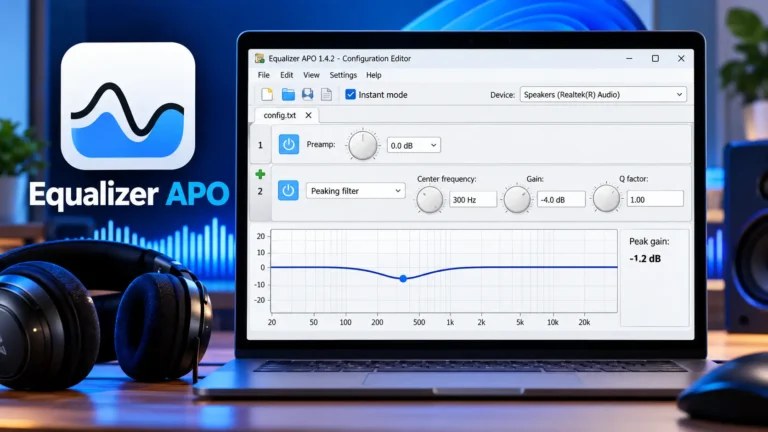
| Configuration Editor (ships with Equalizer APO) | Building filters with a live graph; see the Configuration Editor walkthrough |
| Peace GUI | Sliders and saved presets; it rewrites config.txt for you |
If Notepad says you don’t have permission to save, open Notepad as administrator and try again.
How Equalizer APO reads the file
Every line follows one pattern:
Command: ParametersFour rules decide what you hear:
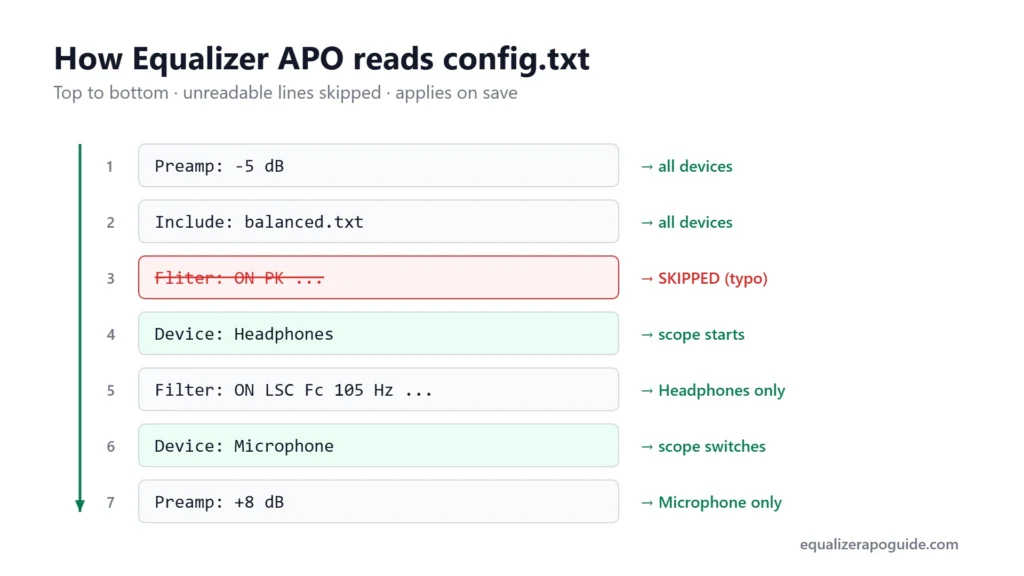
- Top to bottom, in order. Each line applies after the one above it.
- Unreadable lines are skipped silently. That includes misspelled commands and lines starting with
#, which is how you write comments. - Changes apply on save. On my test PC (Windows 11 24H2, v1.4.2), a saved change was audible within 0.5 to 1.5 seconds. No restart.
- Scope commands stick. After a
Device:orChannel:line, everything below applies only to that device or channel until the next one.
The commands you’ll actually use
| Command | What it does | Example |
|---|---|---|
Preamp: | Overall gain in dB. Negative values make room for boosts | Preamp: -6 dB |
Filter: | One EQ filter (type, frequency, gain, Q) | Filter: ON PK Fc 300 Hz Gain -2 dB Q 1.1 |
GraphicEQ: | Frequency/gain pairs; the AutoEQ format | GraphicEQ: 25 6; 40 4.5; 63 3 |
Include: | Loads another config file | Include: bass.txt |
Device: | Limits the following lines to matching devices | Device: Headphones |
Channel: | Limits the following lines to channels | Channel: L |
Copy: | Mixes or swaps channels | Copy: L=R R=L |
Delay: | Delays the selected channels | Delay: 2 ms |
Convolution: | Applies an impulse response file | Convolution: room.wav |
Advanced users also get Stage:, If:/EndIf: and Eval: for logic based on sample rate or channel count. Most setups never need them.
Filter types and what each one does
The Filter: line takes a type code. These cover almost every preset you’ll find:
| Code | Type | Needs | Use it for |
|---|---|---|---|
| PK | Peaking | Fc, Gain, Q | Boosting or cutting one region (the workhorse) |
| LS / LSC | Low shelf | Fc, Gain (Q optional with LSC) | Raising or lowering all the bass |
| HS / HSC | High shelf | Fc, Gain (Q optional with HSC) | Treble and “air” |
| HP | High-pass | Fc | Removing rumble below a frequency |
| LP | Low-pass | Fc | Removing everything above a frequency |
| NO | Notch | Fc | Killing one narrow tone, such as hum |
| BP | Band-pass | Fc | Keeping one band only (no gain) |
The filter number (Filter 1:, Filter 2:) is ignored, so gaps or duplicates don’t matter. The format matches Room EQ Wizard’s “Generic” export, which is why REW and AutoEQ files paste straight in.
The 5 silent failures
When a preset does nothing, one of these is usually the reason:
- A typo in the command.
Fliter:or a missing colon gets skipped without warning. Copy commands exactly. - A Device line above it that doesn’t match. Everything below a non-matching
Device:line is ignored. This catches people who paste a preset under someone else’s device name. - Two presets stacked. Paste a second preset without deleting the first and both apply. Preamps add up too: when several Preamp lines apply to the same channel, Equalizer APO adds them together.
- The file isn’t included.
bass.txtin the config folder does nothing unlessconfig.txthasInclude: bass.txt. - The install, not the file. If
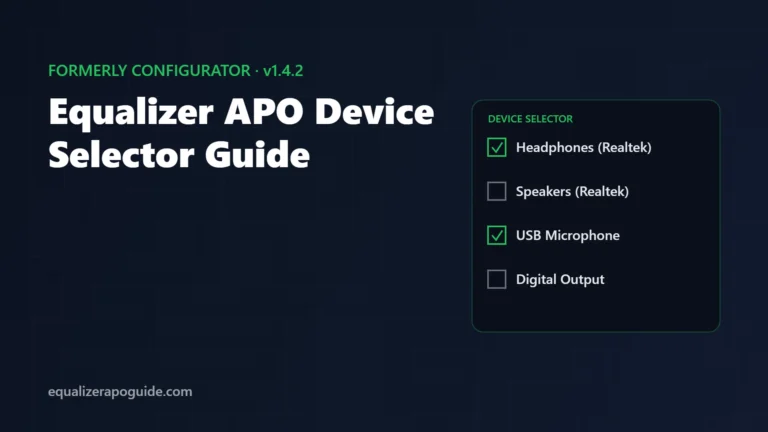
Preamp: -15 dBdoesn’t make your music quieter, no line in this file will work. Open the Device Selector and re-tick your device.
Copy-paste examples
A clean switchboard for presets
Keep each preset in its own file and switch with one line:
Preamp: 0 dB
Include: balanced.txt
# Include: bass.txt
# Include: fps.txt
Move the # to change preset. Your preset files never get overwritten.
Different EQ per device
Device: Headphones
Include: balanced.txt

Device: Speakers
Preamp: -4 dB
Include: laptop.txt
The Device: text is a set of words that must all appear in the device name, connection name or ID. Separate alternatives with ;, and use Device: all to go back to every device.
Fix a quiet left or right side
Channel: R
Preamp: -2 dB
Channel: all
This lowers the right channel by 2 dB. End with Channel: all so later lines hit both sides again.
Swap left and right
Copy: L=R R=LAssignments on one line use the audio from before the line ran, so this swaps cleanly.
Turn stereo into mono
Copy: L=0.5*L+0.5*R R=0.5*L+0.5*RUseful if you’re deaf in one ear or a recording is hard-panned.
EQ your microphone separately
Device: Microphone
Preamp: +6 dB
Filter: ON HP Fc 80 Hz
The microphone must be ticked on the capture side of the Device Selector first. Full steps are in Equalizer APO microphone settings.
Bass and subwoofer setups
If you run 5.1 or 7.1 speakers, it’s tempting to put bass filters only on the LFE (subwoofer) channel. The official reference advises against it: many systems redirect bass after Equalizer APO has processed the audio, so LFE-only filters miss part of it. Apply low-frequency filters to all channels.
Back up and reset
- Back up: copy the whole
configfolder somewhere safe. That’s every preset and setting. - Reset to flat: replace
config.txtwith a single line,Preamp: 0 dB. - Restore: paste the folder back.
config.txt FAQ
Last updated: October 2026 · Equalizer APO v1.4.2 · Windows 11 24H2
Written by Walter Green. Testing methodology and hardware →