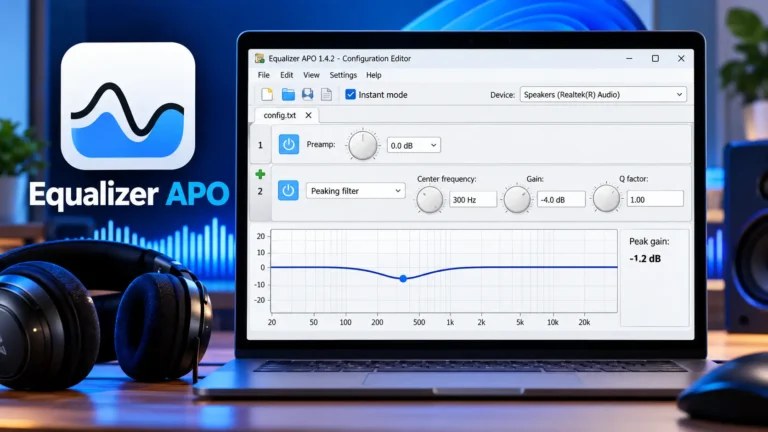
Equalizer APO No Sound? 9 Fixes for Silent Audio
Equalizer APO almost never deletes your audio on its own. When the sound goes silent right after you install it or load a preset, the cause is nearly always one of four things: a preamp set far too low, a broken line in config.txt, the wrong install mode for your driver, or another audio enhancer fighting it.
Run the 2-minute test below first. It tells you whether Equalizer APO is the problem at all, so you don’t waste time on the wrong fix.
2-minute test: open Device Selector from the Start menu, untick your output device, click OK and restart Windows. If sound comes back, Equalizer APO (or its config) was the cause, and the fixes below apply. If the PC is still silent, the problem is your driver or Windows, and you should check our general not-working guide instead.
Quick match: symptom, cause, fix
| What you hear | Most likely cause | Go to |
|---|---|---|
| Total silence right after loading a preset | Preamp too low or a broken config line | Fix 1 and Fix 2 |
| Silence right after installing and rebooting | Install mode clashes with your driver | Fix 4 |
| Sound cuts out on loud parts, crackles | Peak gain above 0 dB (clipping) | Fix 1 |
| Silence only with Nahimic, Sonic Studio, Dolby or DTS running | Two audio processors on one device | Fix 5 |
| Bluetooth headset goes silent in calls or games | Hands-Free device not set up | Fix 8 |
| Silence after a Windows or driver update | Driver reinstalled without the APO | Fix 7 |
Fix 1: Check the preamp and peak gain
This is the most common cause of a “silent” Equalizer APO. Preamp lowers the whole signal before the filters run. A value like -30 dB makes most music too quiet to hear on laptop speakers, and anything near -100 dB is silence for practical purposes.
The opposite problem looks different but feels the same. If your filters push the total gain above 0 dB, the signal clips. Some drivers react to heavy clipping by cutting out on loud passages.
- Open the Configuration Editor from the Start menu.
- Look at the first Preamplification block. For normal presets it should sit between -3 dB and -8 dB.
- Check Peak gain in the Analysis panel at the bottom. Keep it at 0 dB or lower.
- If the preamp is very low, set it to -6 dB and play something. If peak gain is above 0 dB, lower the preamp until it reads 0 dB or less.
Rule of thumb: your preamp should be at least as negative as your biggest boost. A +6 dB bass shelf needs about -6 dB of preamp. Our bass boost configs show this with real numbers.
Fix 2: Strip config.txt down to one line
A preset copied from a forum can carry lines meant for someone else’s setup. Instead of hunting for the bad line, cut the file down and add things back.
- Open
C:\Program Files\EqualizerAPO\config\config.txtin Notepad (run Notepad as administrator so you can save). - Copy everything into a backup file first.
- Replace the whole file with the single line below and save.
Preamp: -6 dBEqualizer APO reloads the file the moment you save it, so you don’t need to restart. If sound returns, paste your old lines back one block at a time until it goes silent again. The last block you added is the problem.
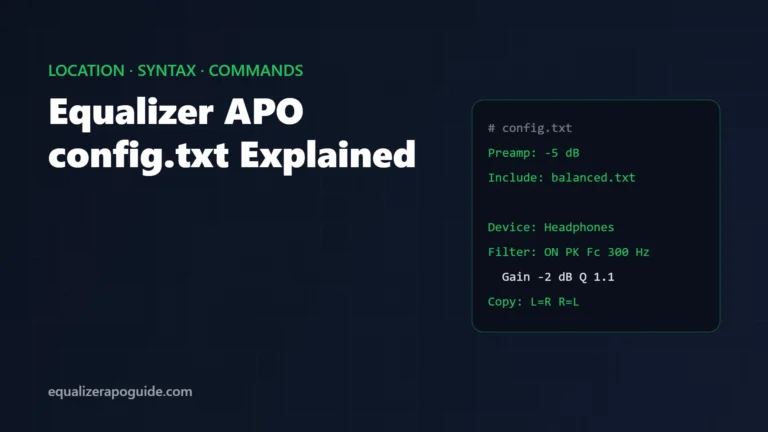
Lines to look at first: Include: pointing to a file you don’t have, Device: lines naming another person’s hardware, and Copy: or Channel: lines from surround configs used on stereo headphones. Our config.txt guide explains what each command does.
Fix 3: Make sure Peace isn’t muting you
If you use the Peace interface, it writes its own settings into Equalizer APO’s config. A preset with the overall gain dragged to the bottom, or every slider pulled down, gives the same silence as a bad preamp.
In Peace, load the Flat or default preset and check the Pre-amplifying slider. If sound returns, rebuild your preset with a smaller gain change. Our Peace setup guide covers each part of that window.
Fix 4: Change the install mode in Device Selector
If the silence started right after the install reboot, before you touched any preset, the install mode is the usual suspect. Equalizer APO hooks into the audio driver as an APO, and some drivers don’t accept the default way it does that.
- Open Device Selector and select your device.
- Tick Troubleshooting options (only use in case of problems).
- In the Install as dropdown, switch to a different mode. If it says SFX/EFX, try SFX/EFX (experimental) first, then LFX/GFX.
- Click OK and restart Windows. Test after each change, one mode at a time.
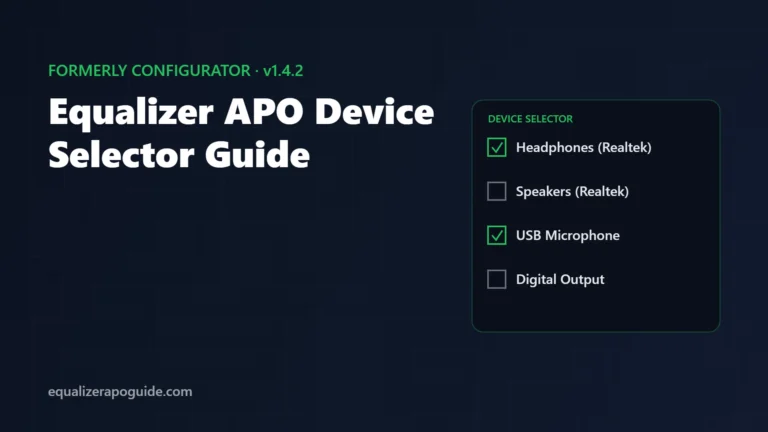
Our Device Selector guide has screenshots of this window and explains what each mode changes.
Fix 5: Turn off other audio enhancers
Many laptops and motherboards ship with their own sound processing: Nahimic, ASUS Sonic Studio, Dolby Atmos, DTS Sound Unbound or the effects in Realtek Audio Console. These install their own APOs on the same device. Two processors in one chain can produce silence, crackling or a device that stops working after a reboot.
- Turn the effects off inside the enhancer’s own app first.
- If that doesn’t help, try Fix 4 again with the enhancer off. The experimental SFX/EFX mode exists for drivers like these.
- As a last step, uninstall the enhancer app from Settings > Apps and restart.
You only need one equalizer on a device. Equalizer APO does everything these apps’ EQs do, with more control.
Fix 6: Restart the Windows Audio service
Sometimes the audio engine hangs after a config change and stays silent until it restarts. You can restart it without rebooting the whole PC.
- Right-click Start and open Terminal (Admin).
- Run the command below.
net stop audiosrv /y; net start audiosrvIf it says a dependent service will stop too, that’s normal. Play audio again after it starts. If sound returns and later drops again, go back to Fix 2: something in the config is the trigger.
Fix 7: Re-run Device Selector after Windows or driver updates
A Windows feature update or a new audio driver can reinstall your device without the APO entry. Sometimes the EQ just stops working. On some systems the device goes silent until you register it again.
- Open Device Selector. Your device may show as not installed.
- Tick it again, click OK and restart.
- In Windows 11, open Settings > System > Sound, pick your output device and check that Audio enhancements is set to Device Default Effects. With enhancements off, Windows skips APOs, so the EQ has no effect.
Fix 8: Bluetooth headsets that go silent
Most Bluetooth headsets appear twice in Windows: a Stereo device for music and a Hands-Free device that turns on when an app opens the mic. When a game or Discord starts using the mic, Windows switches to Hands-Free.
If you installed Equalizer APO only on the Stereo entry, your EQ disappears the moment that switch happens, and on some drivers the switch itself gives a few seconds of silence. Tick both entries in Device Selector. For calls, also see our Discord setup guide, which covers the mic side.
Fix 9: Clean reinstall (or remove it to get sound back)
If nothing above worked, do a clean reinstall. Save a copy of your config folder first so you keep your presets.
- Uninstall Equalizer APO from Settings > Apps > Installed apps.
- Restart Windows and confirm sound works without it.
- Download v1.4.2 again using the official download link on our homepage and install it.
- In Device Selector, tick only the one device you actually listen on. Restart.
- Test with the one-line config from Fix 2 before you load any preset.
Once sound works with the one-line config, load a preset from our 20 tested presets. Each one lists its preamp, so it won’t push peak gain above 0 dB.
Equalizer APO no sound: FAQ
Still stuck? Our Equalizer APO not working guide covers the cases where the EQ has no effect at all, and the beginner guide walks through a clean first setup.