Equalizer APO Not Installing? 9 Fixes for Setup Errors
When Equalizer APO won’t install, Windows is almost always the thing saying no: SmartScreen, an antivirus, S mode or a missing admin prompt. The rest of the time it’s the wrong build, a broken download or leftovers from an old install.
Find the message you’re seeing in the table, then jump to that fix. Most take under 2 minutes.
Before anything else: restart Windows once, then run the installer again. A pending Windows Update or a half-removed old version blocks more installs than any other cause, and a restart clears both.
What you see and what fixes it
| What happens | Cause | Go to |
|---|---|---|
| Installer closes or says the file is corrupt | Incomplete download | Fix 1 |
| “This app can’t run on your PC” | Wrong build (x64, x86 or ARM64) | Fix 2 |
| “Windows protected your PC” | SmartScreen | Fix 3 |
| The .exe disappears or is “quarantined” | Antivirus false positive | Fix 4 |
| “This mode of Windows only runs Microsoft-verified apps” or “Smart App Control blocked an app” | S mode or Smart App Control | Fix 5 |
| Nothing happens when you double-click | No admin rights | Fix 6 |
| Setup fails right after an uninstall | Leftovers from the old version | Fix 7 |
| “Error while opening registry key … Child APO’s” | Deleted registry keys | Fix 8 |
| Setup finishes but EQ does nothing | Device not selected, no restart | Fix 9 |
Fix 1: Check the installer file
A download that stopped early gives an installer that closes instantly or reports a damaged file. The x64 installer for v1.4.2 is exactly 11,980,366 bytes. Right-click it, open Properties and compare the “Size” line.
For a full check, open PowerShell and run:
Get-FileHash "$env:USERPROFILE\Downloads\EqualizerAPO-x64-1.4.2.exe" -Algorithm SHA256The result must match the SHA-256 listed under our Equalizer APO download button. If it doesn’t, delete the file and download it again.
Fix 2: Use the right build for your PC
“This app can’t run on your PC” means the build doesn’t match your Windows. Open Settings > System > About and read System type.
- 64-bit operating system, x64-based processor: use the x64 build. That’s nearly every PC.
- 32-bit operating system: use the x86 build.
- ARM-based processor (Snapdragon laptops, Surface Pro X): use the ARM64 build.
The x86 and ARM64 builds are behind the “Other builds” button on our download section.
Fix 3: Get past “Windows protected your PC”
This blue SmartScreen box appears for programs that Windows hasn’t seen downloaded often. It’s a reputation check, not a virus detection.
- Check the file first with Fix 1, so you know it’s the right one.
- Click More info in the SmartScreen box.
- Click Run anyway.
Fix 4: Antivirus deleted or blocked the installer
Equalizer APO installs an audio processing component into Windows, and some antivirus tools flag that behaviour by heuristics. Our VirusTotal scan of v1.4.2 returned 0/70, so a single flag is a false positive.
- Open your antivirus quarantine (in Windows Security: Virus & threat protection > Protection history).
- Restore the installer and choose Allow.
- Run the hash check from Fix 1 on the restored file before you install it.
Don’t turn your antivirus off completely. Allowing the one file is enough.
Fix 5: S mode or Smart App Control is blocking it
Windows in S mode only runs apps from the Microsoft Store, so no regular installer works. Check under Settings > System > About. Leaving S mode is free through the Microsoft Store, but it’s one-way: you can’t switch back.
Smart App Control on newer Windows 11 PCs can block apps it can’t verify. Look under Windows Security > App & browser control > Smart App Control settings. Turning it off is also one-way on most PCs, so only do it if you’re sure you want Equalizer APO.
Fix 6: Run the installer as administrator
Equalizer APO writes to Program Files and the audio settings in the registry, so it needs admin rights. Right-click the installer and pick Run as administrator.
If you use a standard (non-admin) account, Windows asks for an admin password. On a work or school PC, IT may block installs completely, and only they can install it for you.
Fix 7: Clean out an old install first
Installing over a broken or half-removed version is a common failure.
- Copy
C:\Program Files\EqualizerAPO\configsomewhere safe if you want to keep your presets. - Uninstall Equalizer APO from Settings > Apps > Installed apps.
- Restart Windows. Skipping this restart is the usual reason the next install fails.
- If the
EqualizerAPOfolder is still in Program Files, delete it. - Run the installer again.
Fix 8: “Error while opening registry key … Child APO’s”
This error shows up when Equalizer APO’s registry entries were deleted by hand, usually after following a “clean your registry” tutorial. The program then looks for keys that no longer exist.
- First, do the clean reinstall in Fix 7. The installer writes its registry keys again.
- If the error stays, use System Restore to a point from before the registry edits (search “Create a restore point” > System Restore).
Don’t delete Equalizer APO registry keys by hand. Uninstalling it removes what needs removing.
Fix 9: Setup finished but nothing changed
If the installer completed but your EQ does nothing, the install worked. Two steps are usually missing:
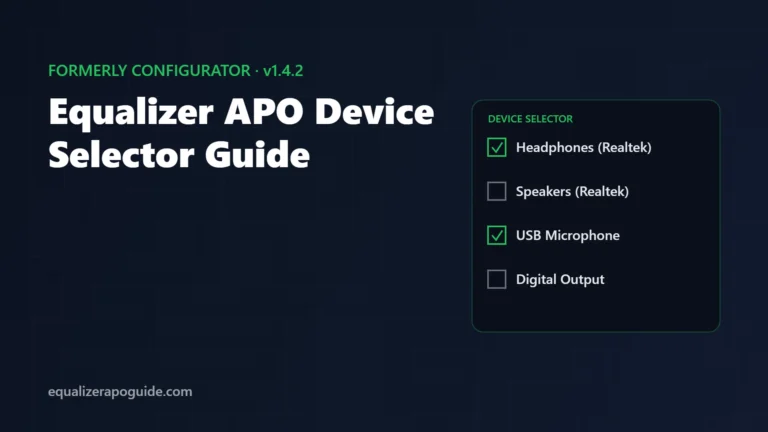
- In Device Selector, the device you listen on must be ticked. Our Device Selector guide shows how to pick the right one.
- Windows must be restarted after you tick it. Equalizer APO only loads into the audio driver at startup.
Still no effect after a restart? Go to Equalizer APO not working. If your sound went completely silent instead, use the no sound guide.
Equalizer APO not installing: FAQ
Installed and ready? Follow our beginner guide to set up your first EQ, then load a preset from our 20 tested presets.